Made by Julian Cartwright with Scribe
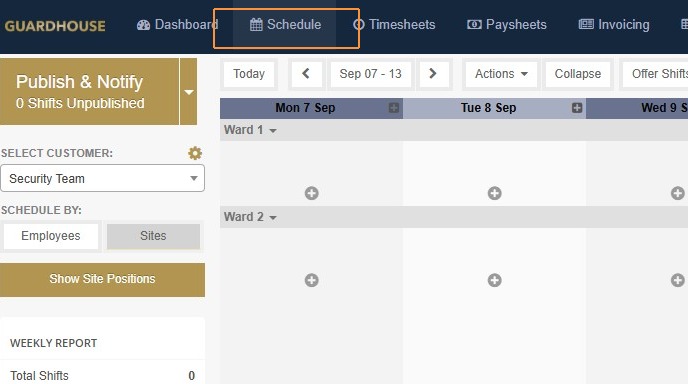
1. Navigate to the Schedule page
Adding an allowance to a shift
2. Add a shift or select an existing shift
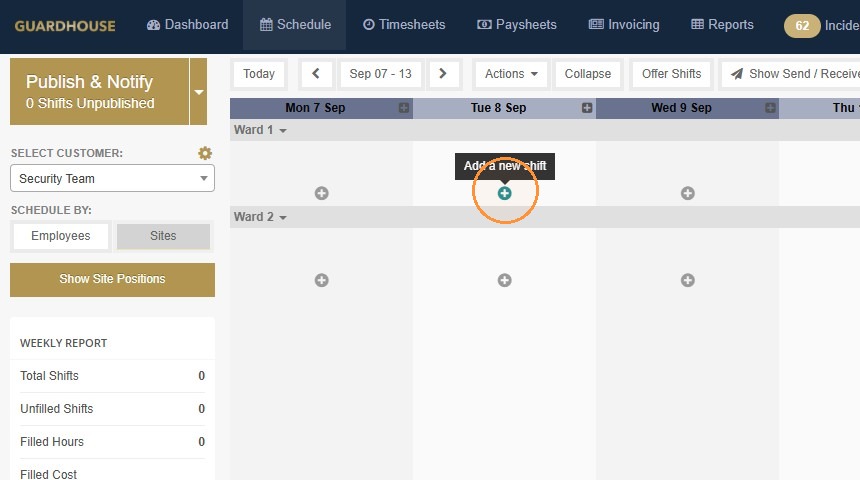
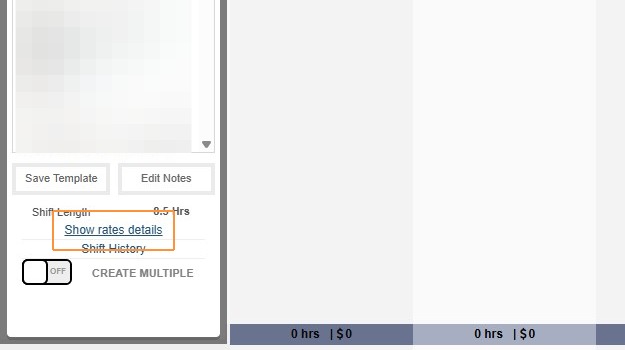
3. Click "Show rates details" in the shift creation panel
4. Click "+ Allowance"
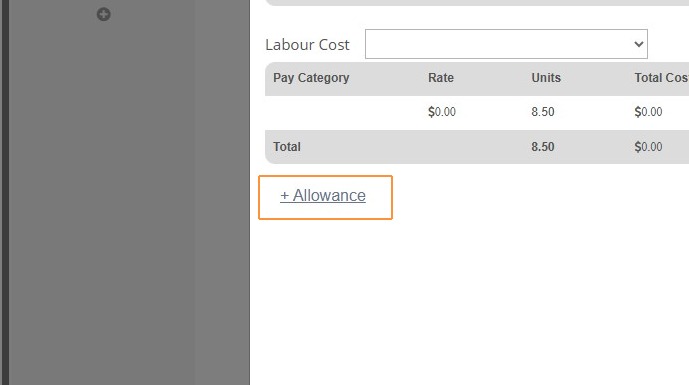
5. Select an allowance from the Allowance Name dropdown.
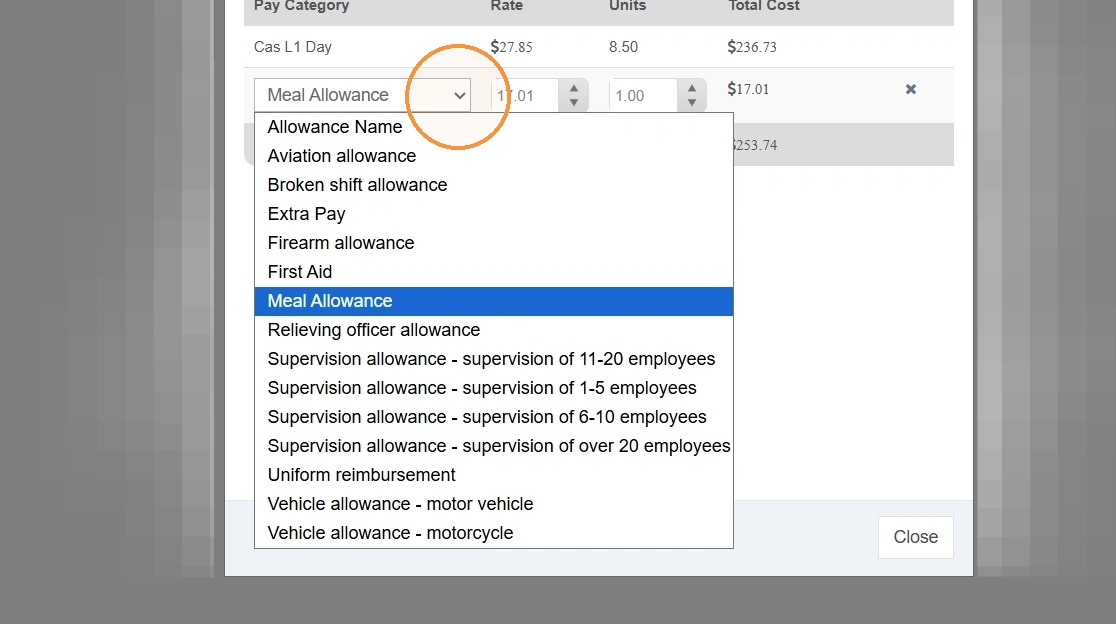
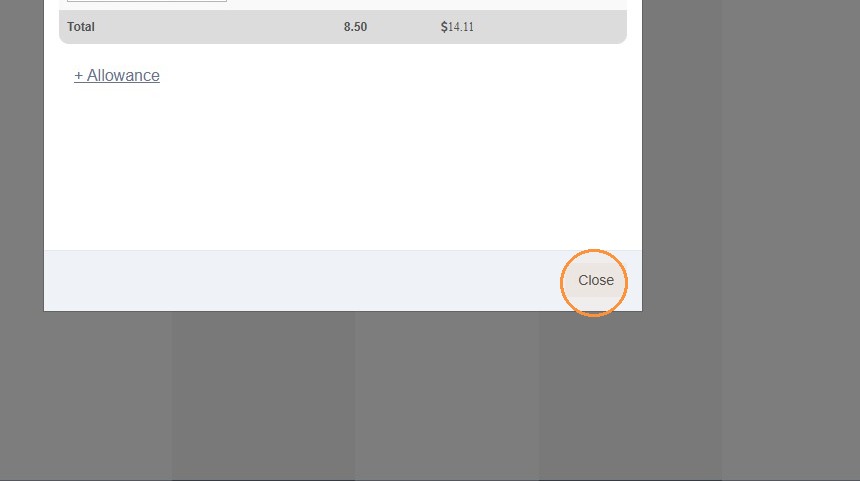
6. Click "Close" when you've finished adjusting rates
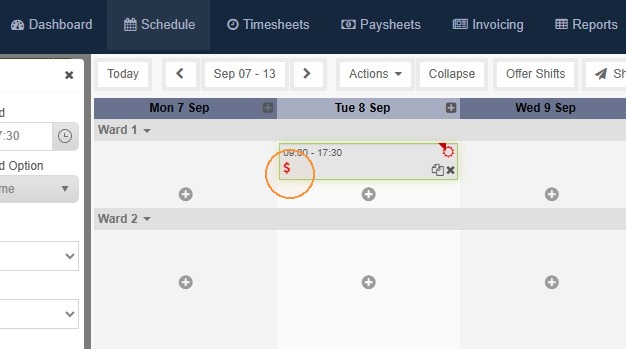
7. Once applied, you'll see the allowance icon added into the shift
Unassigning and reassigning shifts with Allowances
8. Allowances can be added with or without a staff member assigned to a shift
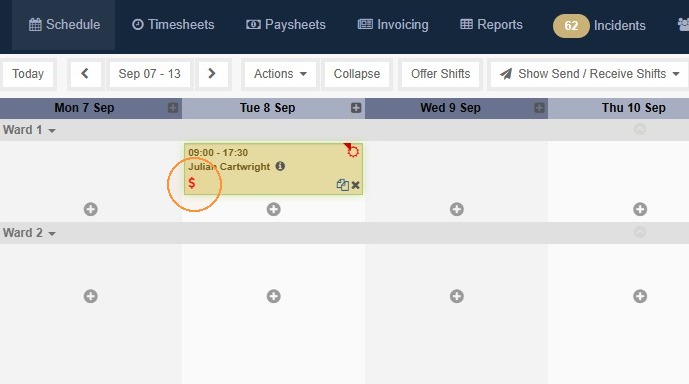
9. If you unassign the staff member from a shift, any allowances configured on that shift stay in place, you won't need to re-add them when someone is reassigned.
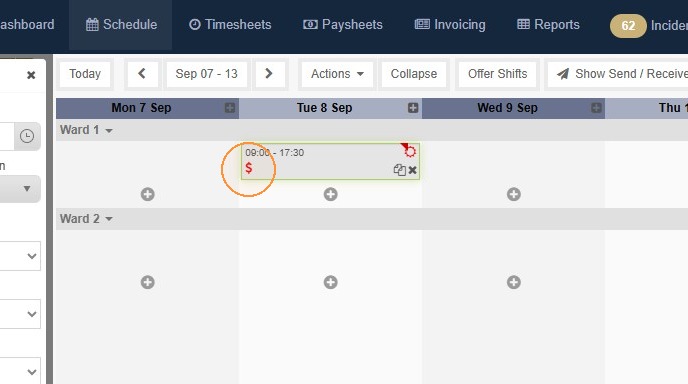
Allowances and Copying Shifts
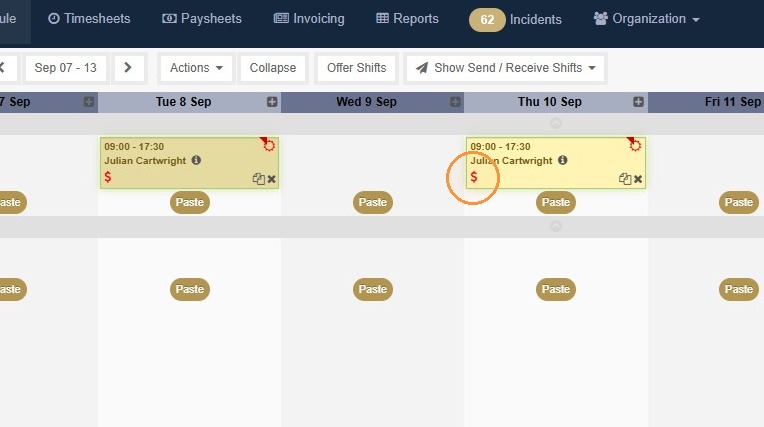
10. When you copy an assigned or unassigned shift
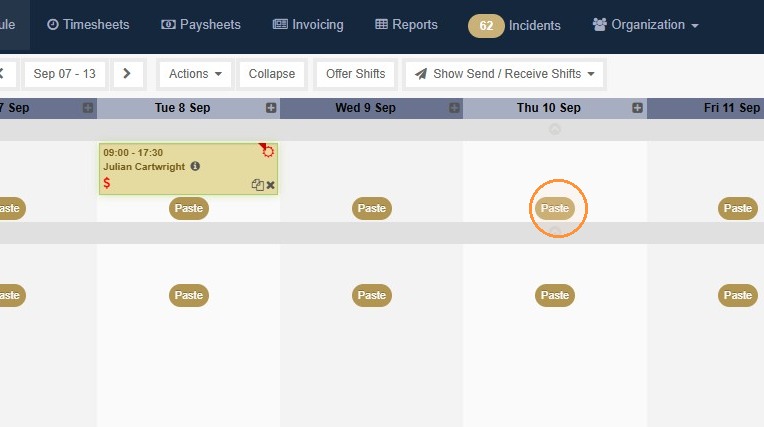
11. Allowances on the source shift automatically carry over to the new shift.
Allowances and Copying Weeks
12. When you copy a weekly schedule
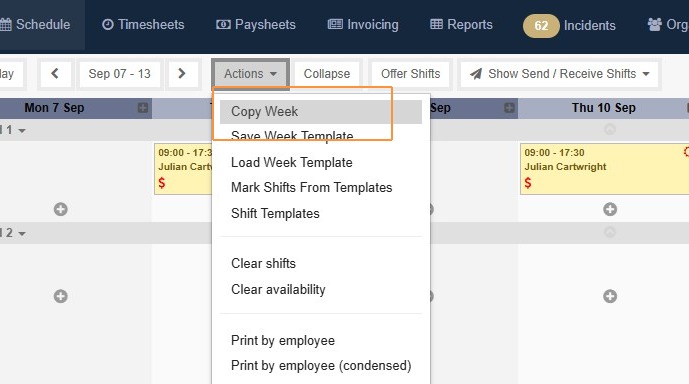
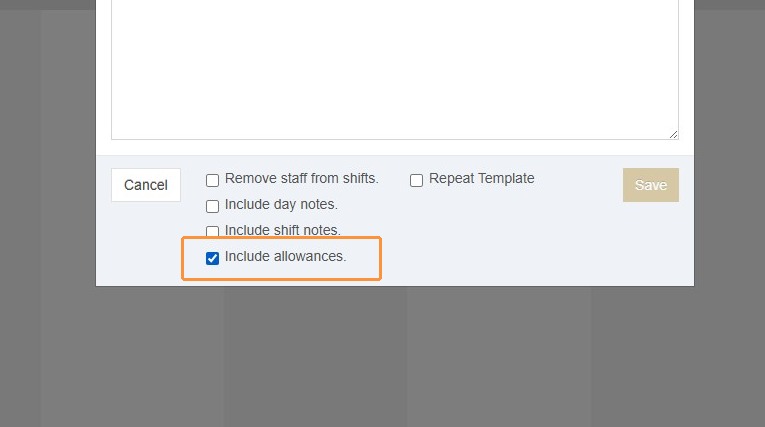
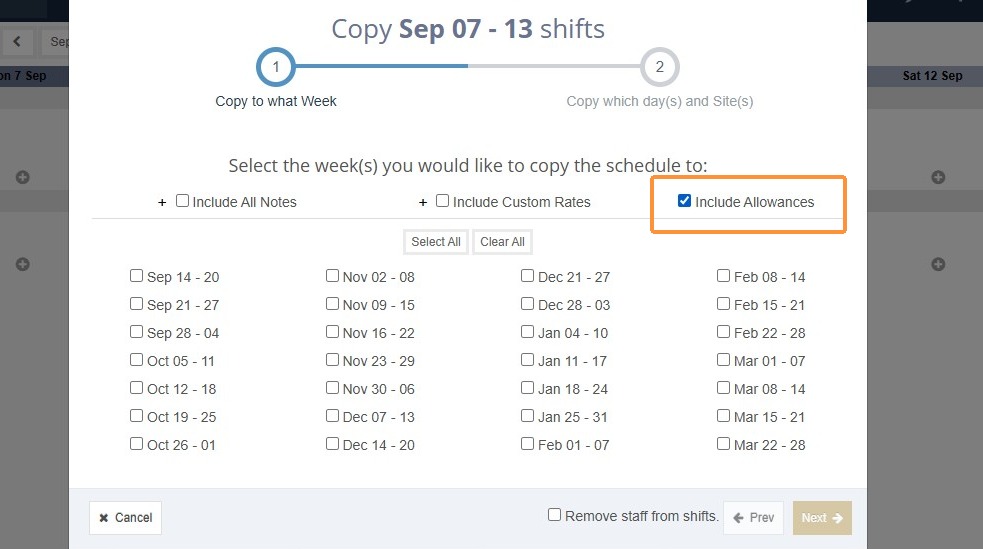
13. The Copy Week modal has an "Include Allowances" checkbox
This defaults to unchecked and you need to actively tick it for allowances to come across with the copied week.
Allowances and Customer / Site Templates
14. When you save Customer or Site Templates
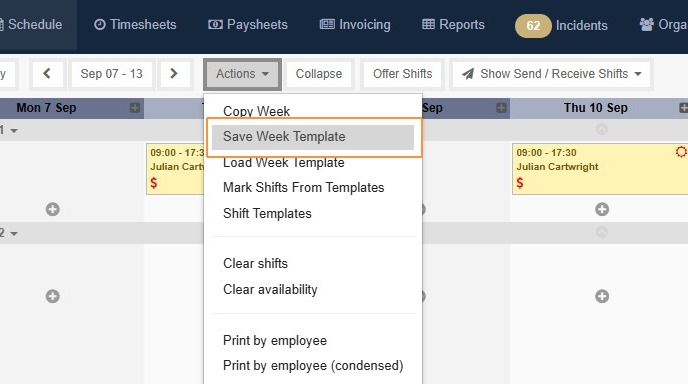
15. The Save Template modal has an "Include Allowances" checkbox
This defaults to unchecked and you need to actively tick it for Templates to be saved with Allowances.
If you apply a week templates or use the repeating templates feature to automatically create shifts, the new shifts it creates come in with those allowances already configured.