
Once a cycle is Active, its shifts appear on the Schedule like any other shift. This page explains how to recognise them and what you can do with them.
Recognise a cycle shift
Shifts that came from a cycle show a small cycle icon under the shift time. Hover over it to see Cycle Schedule.
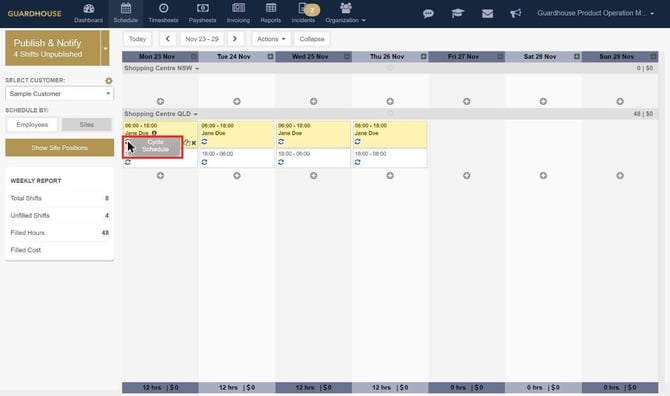
- A blue icon is the normal state.
- The icon colour can change (we saw it turn orange after a cycle was ended).
Publish cycle shifts
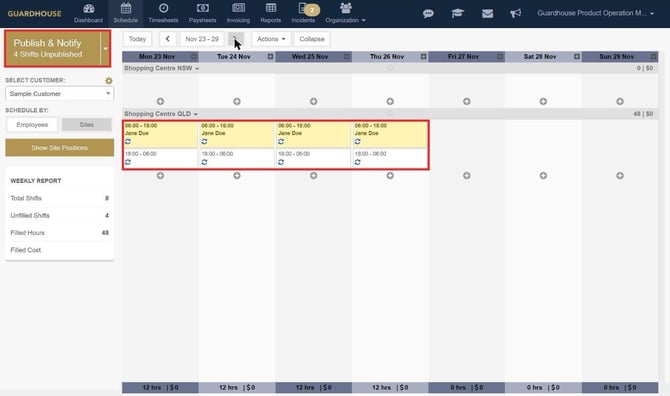
Cycle shifts arrive unpublished, the same as shifts you add by hand:
- A shift with a person assigned in the cycle shows that person, in yellow (unpublished).
- A shift with nobody assigned shows as an unfilled shift.
- The Publish & Notify button counts them (for example "2 Shifts Unpublished").
Publish them the way you normally do. Staff aren't told about cycle shifts until you publish.
Edit a cycle shift on the Schedule
Select the shift to open the Selected Shift panel and change its time, break, position, role or staff as normal.
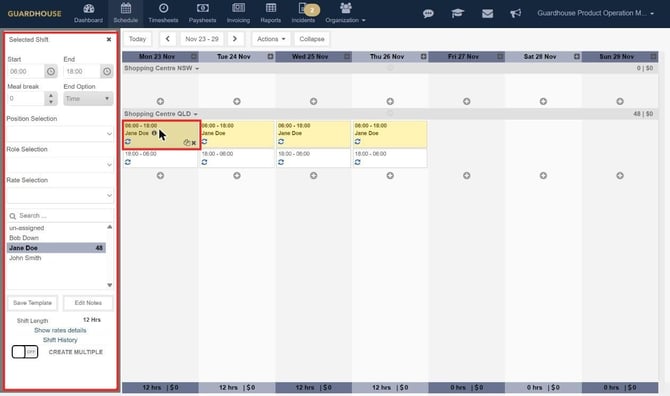
Note: Changes you make on the Schedule only affect that one shift. They don't change the cycle. To change shifts across the cycle, edit the cycle and use Save and Release. See How to edit a cycle schedule.
If a cycle shift is being updated by a Save and Release, it is briefly locked ("This shift is being updated from its cycle – it will unlock in a moment.").
Shift History and the Cycle tab
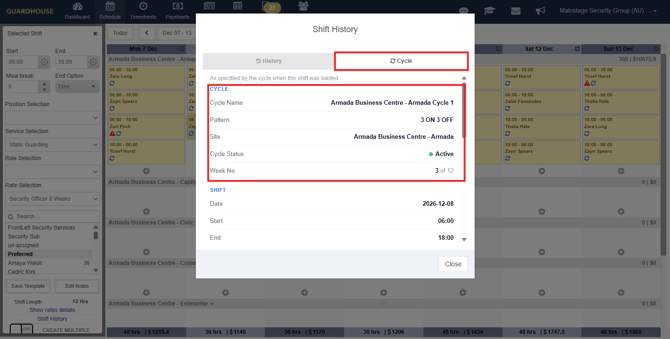
Select Shift History at the bottom of the Selected Shift panel to see the shift's history, such as who created it, the site, time and staff.
For a shift that came from a cycle, the window also has a Cycle tab next to History. It shows which cycle the shift came from, as the cycle specified when the shift was loaded: the Cycle Name, Pattern, Site, Cycle Status and Week No. (for example 3 of 12), followed by the shift's date, start and end times.
When cycle shifts get changed or removed
- Save and Release on an Active cycle applies your cycle changes to the Schedule. See How to edit a cycle schedule.
- Ending a cycle removes its later shifts. See How to end or delete a cycle schedule.
- Shifts with an approved timesheet, timeclock data, or that were already edited or reassigned on the Schedule aren't updated by the cycle.