
Updating pay rates across many sites one record at a time can be slow and error-prone. Guardhouse now lets you download all the current rates for a Pay Template into an Excel file, edit them in bulk offline, and upload the file to apply your changes in a single operation. This guide walks you through the full Download → Edit → Upload workflow.
Available to: Super, Admin, and Manager (with payroll permissions) roles.
|
When should I use this? This method is ideal for award increases or any large-scale rate change (for example, the annual minimum wage increase) where you need to update many sites or positions at once. For one-off changes to a single pay group, editing directly in the UI may still be quicker. |
Before you begin, here are some things to consider:
- You will need Microsoft Excel (or a compatible spreadsheet app that saves .xlsx files).
- The Download and Upload options are only visible when there are no pending Pay Group changes on the selected Pay Template. Apply or clear any pending changes first.
- This workflow updates rates only. To change a pay group or pay categories, you must still do that through the Guardhouse website.
- Valid rates: Every NewRate must be a valid number. A prompt will show if it's not a valid number (ex: “Row 14: NewRate is not a valid number”).
- Untouched IDs: The PayTemplateRateId values must be unchanged and belong to this template.
- Complete data: The pay group must match the parent, and every pay category must have its own row.
- File type: Only .xlsx files are accepted.
- Unapprove affected timesheets before applying the rate changes, and
- Click Reprocess in the Paysheets screen to apply the new rates, as needed.
- The Download/Upload options are hidden when there are pending Pay Group changes — apply or clear those first.
- Rates are sorted defaults-first, then by Site / Site Position.
- Uploading a single template at a time is supported by Guardhouse. Multi-template uploads, a change-preview screen, and future-dated effective dates are planned for upcoming releases.
Steps to Bulk Uploading Pay Rate Change
Step 1 — Download the Pay Template
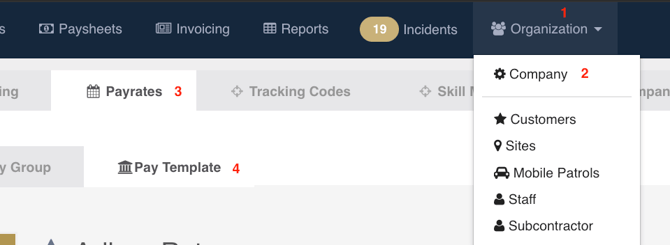
- Go to Organization > Company Settings > Payrates > Pay Templates.
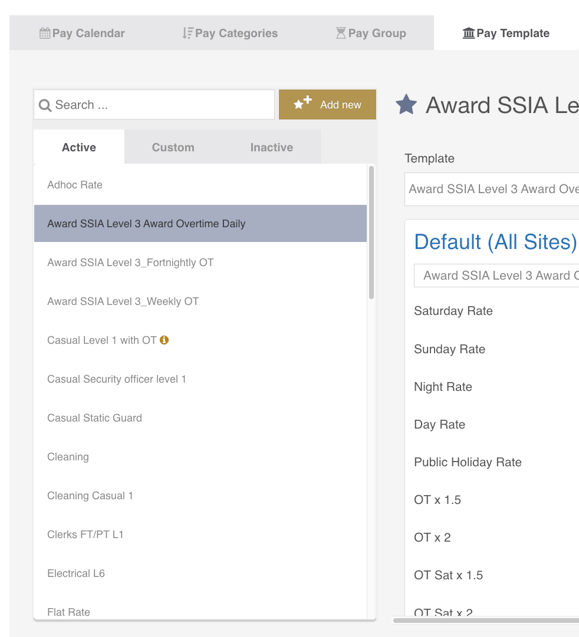
- Select the Pay Template you want to update.
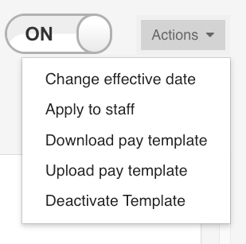
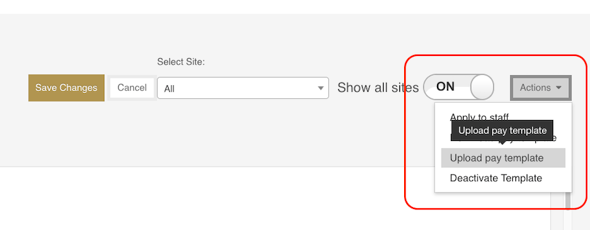
- Click the Actions dropdown in the top-right corner and choose Download pay template.
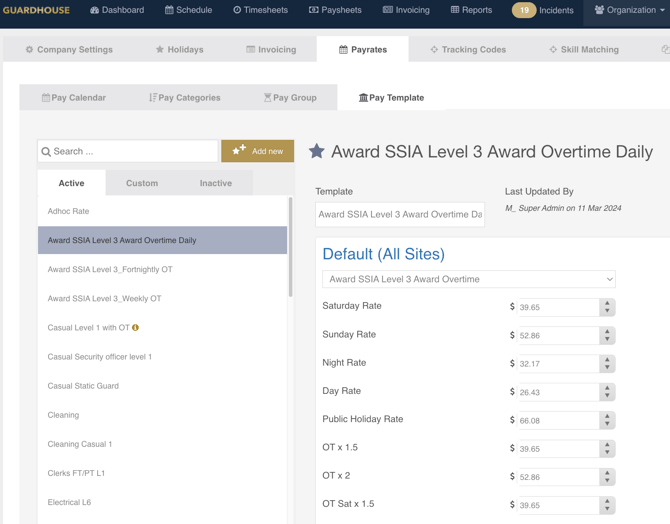
- A loading indicator appears while the file is generated. When it finishes, an Excel file downloads named Pay Template Setup - <Pay Template Name>.xlsx.
|
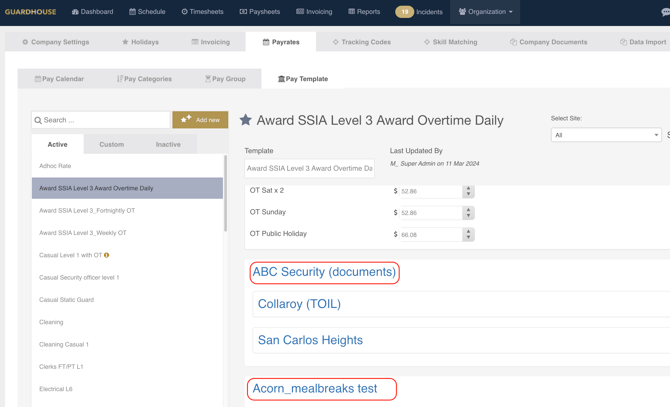
The downloaded file lists the rates in the same order they appear in the the Guardhouse website: template-level defaults first, followed by Site / Site Position level rates. It always reflects the latest saved state of the template at the time of export. |
Step 2 — Understand the Excel File
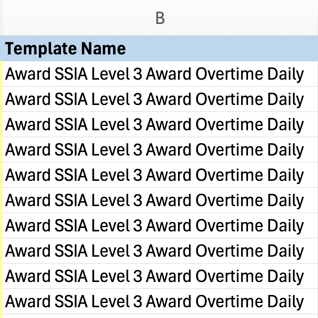
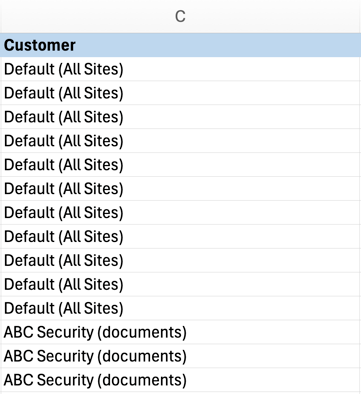
Open the file. Row 1 is a warning message and Row 2 is the column headers — your data begins on Row 3. The columns are:
|
Column |
What it is |
|
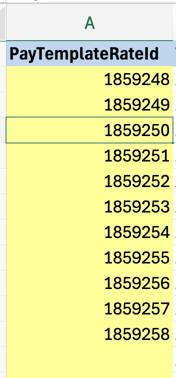
PayTemplateRateId |
Unique ID of the pay rate record. Do not edit. A blank value means that row is currently using the template default. |
|
TemplateName |
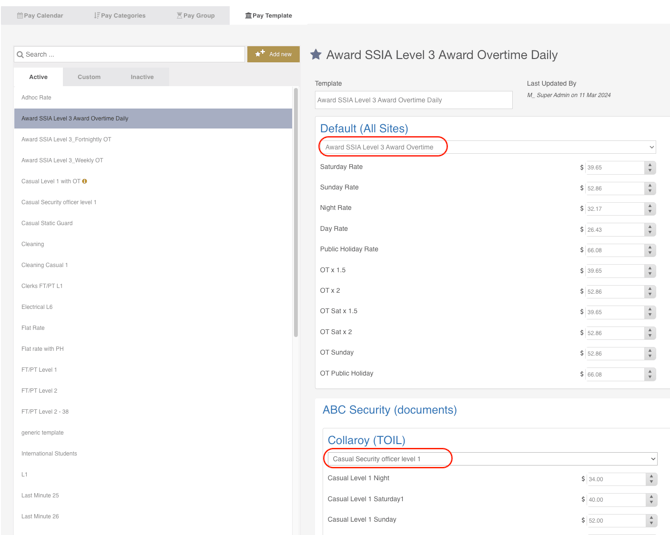
The name of the Pay Template (This is pulled from Organization > Company > Payrates > Pay Templates).
|
|
Customer |
Customer name. Blank for template-level default rows.
|
|
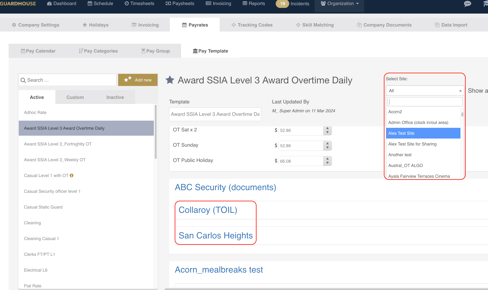
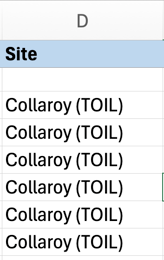
Site |
Site name.
|
|
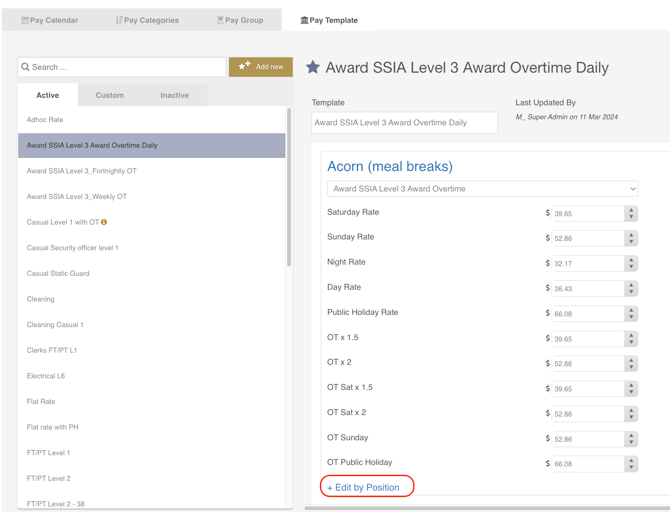
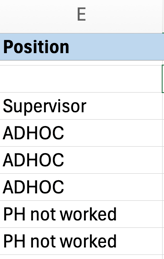
Position |
Site position name. (This is pulled from Organization > Sites > Site Positions)
|
|
Category |
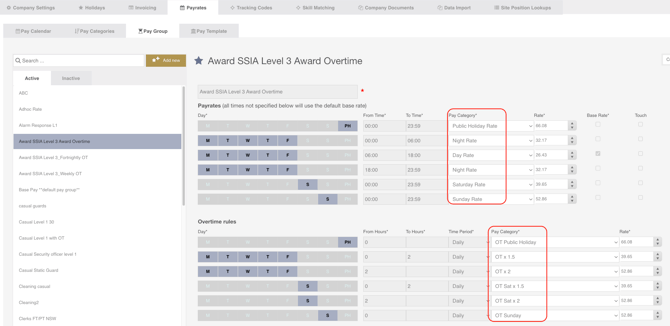
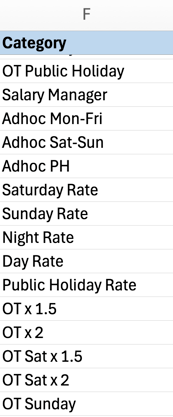
Pay category (e.g. M-F Day, Sat, Sun, PH, OT1, OT2, OT2.5. This is pulled from Organization > Company > Payrates > Pay Group > Pay Category).
|
|
CurrentPaygroup |
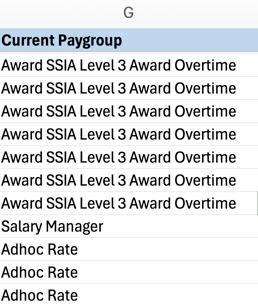
The pay group currently applied.
|
|
CurrentEffectiveDate |
Current effective date of the template (shown as dd/mm/yyyy).
|
|
CurrentRate |
The current rate for that row.
|
|
NewRate |
This is the only column you edit. It is blank on download — enter your new rate here. |
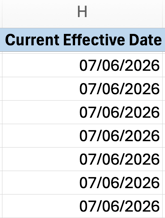
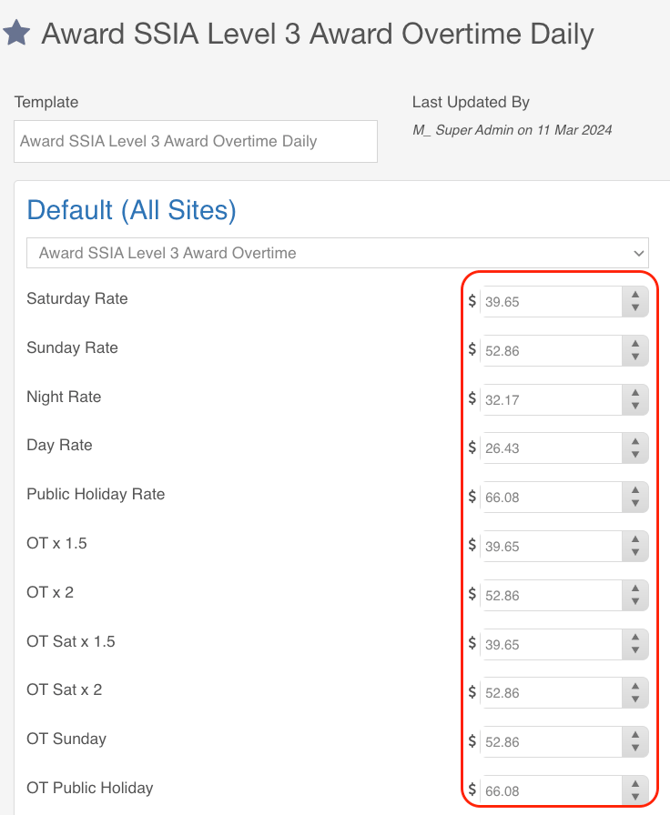
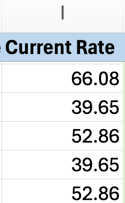
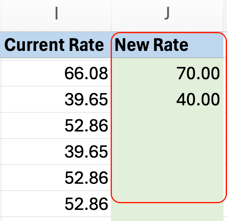
|
Important: Only edit the NewRate column. Do not change the PayTemplateRateId or any other column — doing so will cause the upload to fail. Pay groups and pay categories cannot be changed here; those edits must be made through the UI. |
Step 3 — Enter the New Rates
- In the NewRate column, type the updated rate for each row you want to change.
- Enter rates as a valid number with up to two decimal places (e.g. 32.50).
- For any row you do not want to change, copy its CurrentRate value into the NewRate column so the rate is preserved.
- Save the file, keeping it in .xlsx format and leaving the sheet name as Pay Rates.
|
Tip: Every row needs a valid value in NewRate before upload. Leaving a cell blank or entering text instead of a number will be flagged during validation. |
Step 4 — Upload the Completed File
- Return to the same Pay Template in Company Settings › Pay Templates.
- Click the Actions dropdown and choose Upload pay template.
- In the file selection window, choose your edited .xlsx file.
- The page locks and shows a loading icon while the file is processed — this is normal. Wait for it to complete.
|
Upload to the matching template. Always upload a file to the same Pay Template it was downloaded from. The system validates this to prevent rates being applied to the wrong configuration. |
Step 5 — Resolve Any Validation Errors
Before applying changes, Guardhouse validates the file. If something is wrong, you’ll see a specific, actionable message and the upload will stop without changing any data. Common checks include: Fix the indicated rows in Excel, save, and upload again.
Step 6 — Set the Effective Date & Confirm
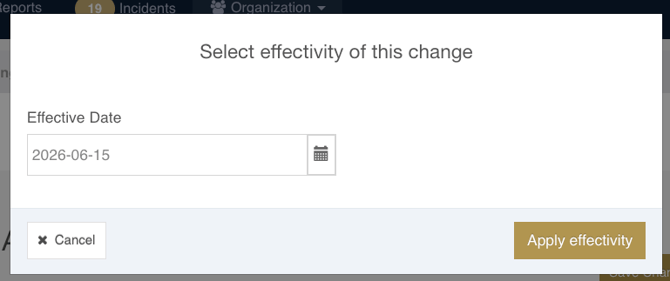
- Once all validations pass, the “Select effectivity of this change” pop-up appears.
- Choose the Effective Date for the new rates. This date applies to the whole Pay Template. You can set the effective date in the past and current pay cycle, but not in the future.
- Confirm to apply the changes. You’ll receive confirmation once the rates are successfully updated.
Good to Know
|
Need a hand? Contact our Support Team at support@guardhousehq.com or reach out to your Success Manager and we can help set this up for your account. |