
You can end a cycle when you no longer want it to create shifts, or delete a cycle you created by mistake. Ending keeps the cycle's history under Inactive. Deleting removes the cycle for good.
Can't see Edit Cycle? See Troubleshooting Cycle Schedules.
End (deactivate) a cycle
- On the Schedule, with Schedule by set to Sites, select the site name, then Edit Cycle, then the cycle.
- Select the status at the top of the page (for example Active) and choose Inactive.
- The Deactivate Cycle window opens. Choose the End Date, the last day the cycle runs. It starts as today and can't be earlier than today.
- Select Deactivate, or Continue Editing to go back without changing anything.
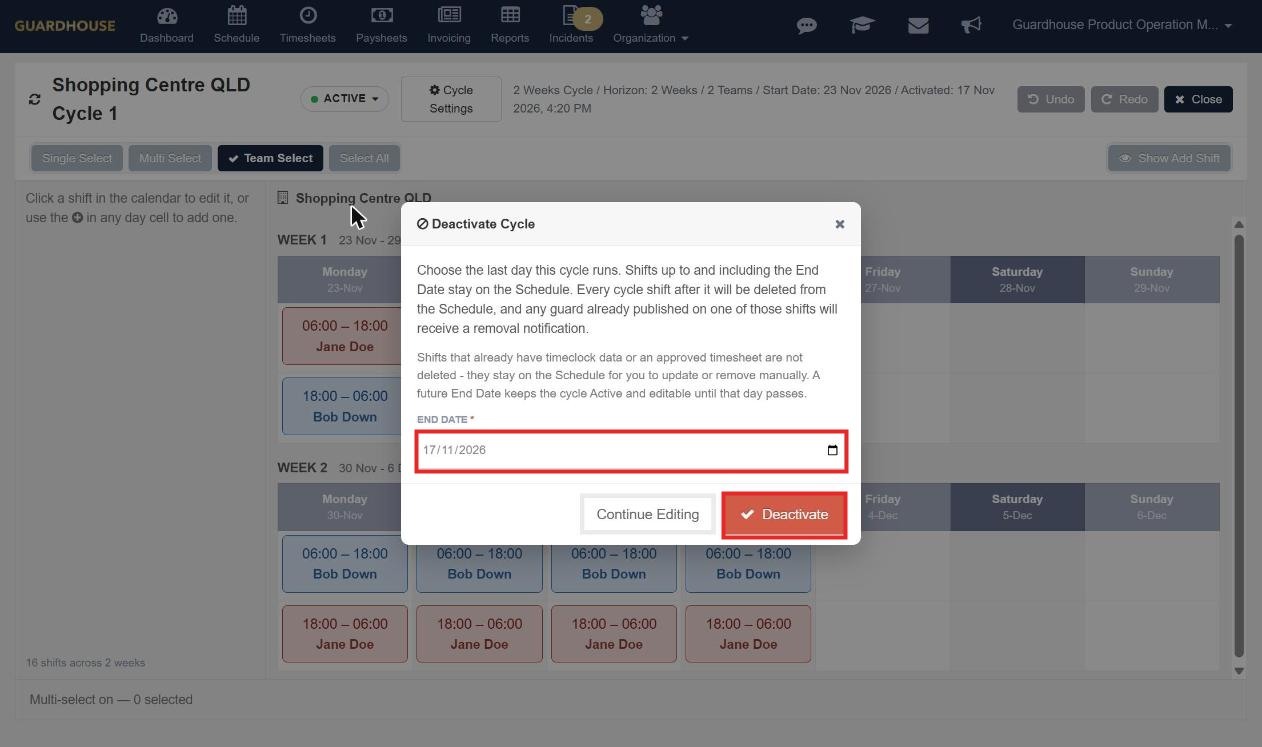
The window explains what happens:
- Shifts up to and including the End Date stay on the Schedule.
- Every cycle shift after the End Date is deleted from the Schedule, and any guard already published on one of those shifts receives a removal notification.
- Shifts that already have timeclock data or an approved timesheet aren't deleted. They stay on the Schedule for you to update or remove yourself.
- A future End Date keeps the cycle Active and editable until that day passes.
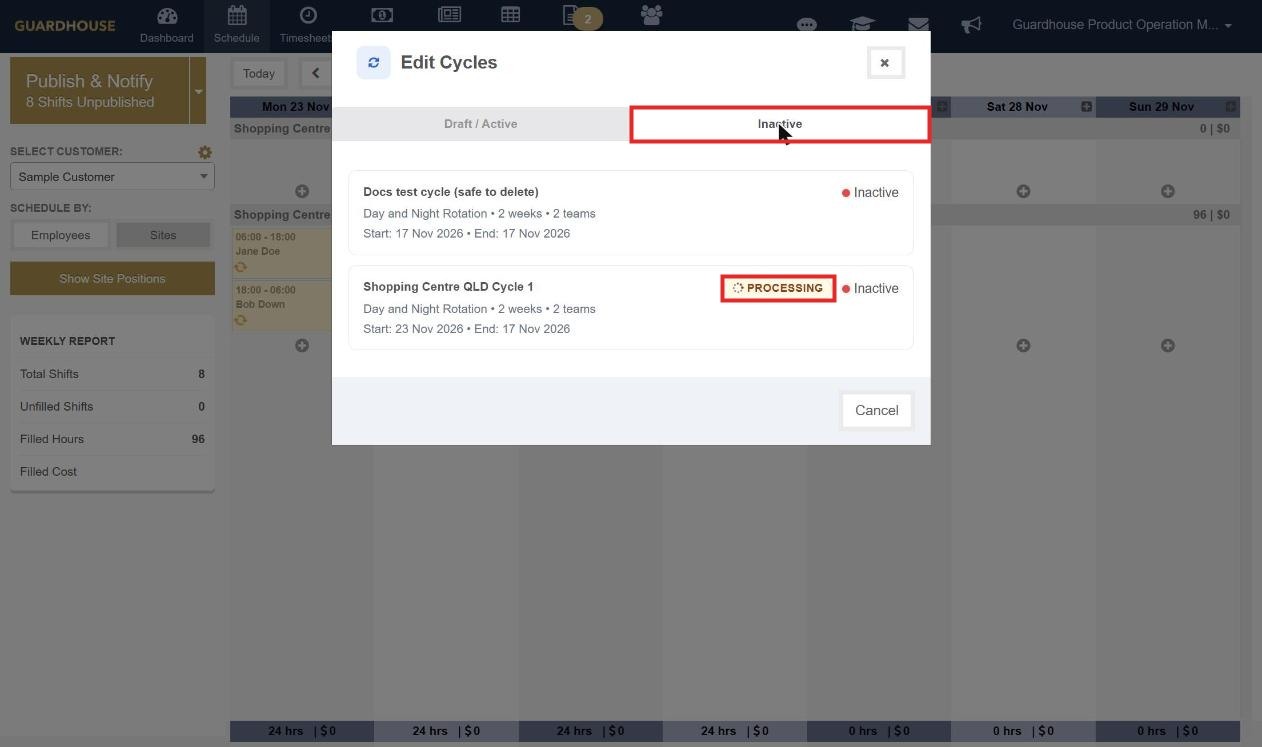
You'll see "Cycle is now Inactive." The cycle moves from the Draft / Active tab to the Inactive tab of the Edit Cycles window, which shows its start and end dates. While Guardhouse removes the later shifts, it shows a Processing badge.
Warning: An Inactive cycle can't be turned back on. Create a new cycle if you need one.
Tip: Ending a Draft cycle that was never activated is simpler. It becomes Inactive straight away and no end date is needed, because it never put any shifts on the Schedule.
Delete a cycle
- Open Edit Cycle for the site.
- Find the cycle and select the bin icon on its right.
- Guardhouse asks Delete Cycle? and says: Cycle "[name]" will be permanently deleted. This cannot be undone. Select Delete to confirm, or Cancel.
You can't delete a cycle while it's Processing (the bin shows "Still processing the last change"). Wait until the badge goes away.
Warning: Deleting is permanent. If you only want a cycle to stop, end it instead.