
Pre-allocated award overtime lets you decide in advance which hours of a shift are paid at the overtime rate. You set it before the shift is worked, on a shift in the Schedule, or earlier on a shift pattern or cycle. It carries through to the roster's labour cost, timesheets and paysheets. In reports, it only shows in the Optimise Overtime and Cycle Overtime reports.
Without it, Guardhouse works out overtime for you: any hours past the employee's daily overtime threshold are paid as overtime, counted from the end of the shift. Pre-allocating overrides that for the shifts you choose.
| Option | What it does |
|---|---|
| All day | Every hour of the shift is paid at the overtime rate. |
| Start and end of the shift | A set number of hours at the start, the end, or both are paid at the overtime rate. The rest is paid at the normal rate. |
When to use it:
- Your award or agreement says a shift must be paid entirely at overtime rates, for example an extra shift on a rostered day off.
- You know in advance that an early start or late finish is overtime.
- You want the roster's labour cost to show the true cost of a shift before it's worked.
Before you start
- Award overtime is turned on for your company, the staff member is on an Award Overtime pay group, and their overtime settings are checked. See How to set up award overtime.
- For a shift in the Schedule, the shift must be saved and have a staff member assigned.
1. Pre-allocate overtime on a shift
Use this for a one-off shift on the roster.
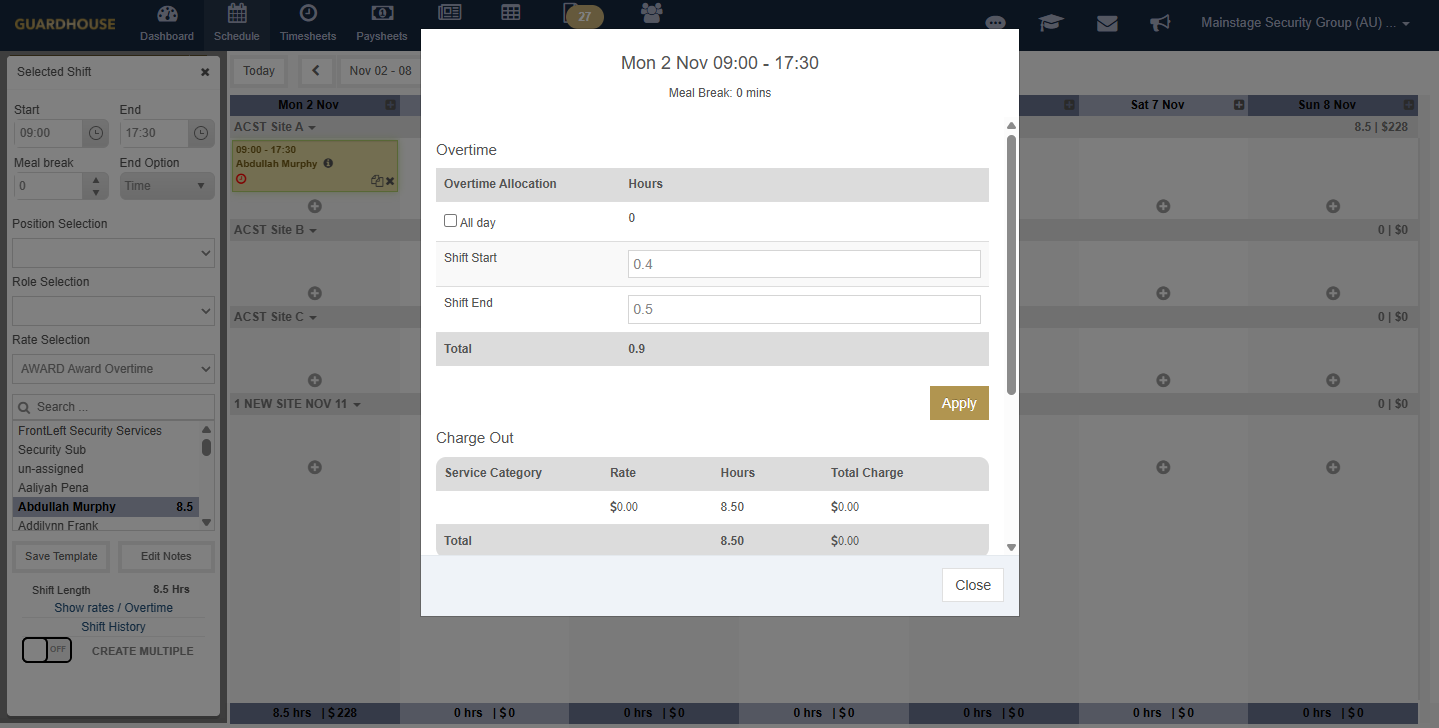
- Go to Schedule and select the saved shift.
- Select Show rates details. The Overtime section shows under the shift times.
- Choose how to allocate:
- Whole shift: tick All day. The hours fill in with the shift length, and Shift Start and Shift End are set to 0 and can't be edited. Untick All day to enter start and end hours instead.
- Part of the shift: leave All day unticked and enter hours in Shift Start and/or Shift End. The total shows below.
- Select Apply.
The shift now shows a note on the roster, for example This shift has pre-allocated overtime: Start 0.4h, End 0.5h, so you can see it without opening the shift.
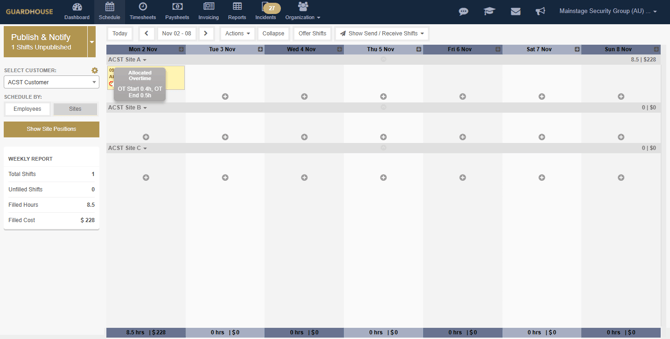
To change it: open the rates details again, update the hours and select Apply.
To remove it: untick All day, set Shift Start and Shift End to 0 and select Apply.
Locked shifts: if the shift's timesheet has been approved, the Overtime fields are greyed out and can't be changed.
You can only set one allocation per shift. To change it, update the hours and select Apply once.
2. Pre-allocate overtime on a shift pattern
If you roster with Cycle Schedules, you can pre-allocate overtime from the shift pattern itself, before any shifts exist. Patterns and cycles support Start and End overtime hours. All day is only available on a shift in the Schedule (section 1).
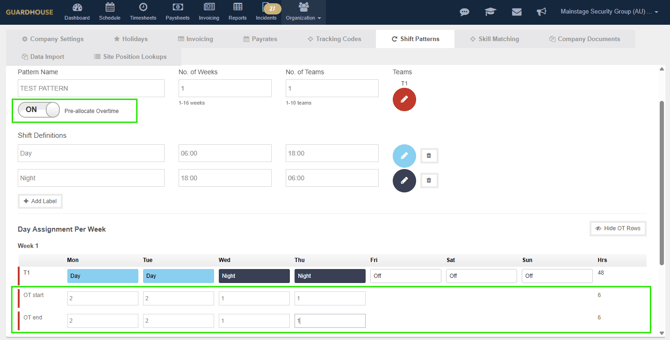
- Go to Organization > Company > Shift Patterns and create a new pattern or edit an existing one. For the basics, see How to build a shift pattern.
- Turn on Pre-allocate Overtime (next to Pattern Name).
- Set the No. of Weeks and No. of Teams, and assign shifts in Day Assignment Per Week.
- Select Show OT Rows. An OT start and OT end row appears under each team.
- Enter the overtime hours at the start and/or end of each shift that needs it.
- Save the pattern.
What you'll see:
- The Hours Summary shows the total pre-allocated overtime hours per team and for all teams.
- The Shift Patterns list has an OT Pre-allocated? column (Yes or No).
Rules on patterns:
- On a pattern or cycle, Guardhouse only checks that OT start and OT end aren't negative and don't add up to more than the shift's hours. The award checks (see "The checks Guardhouse applies" below) depend on the assigned staff member's award overtime settings, so they run once the shift is on the Schedule with a staff member assigned.
- The Pre-allocate Overtime option only appears when award overtime is turned on.
3. Pre-allocate overtime on a cycle
When you create a cycle from the pattern, the OT start and OT end hours come across with each shift. You can still enter or edit them while creating and maintaining the cycle. For the cycle basics, see How to create a cycle schedule and How to edit a cycle schedule.
- Open the cycle and select the shift (or shifts) to change.
- On the Shift tab, under Pre-allocate, enter or edit OT start and OT end.
- Save the cycle.
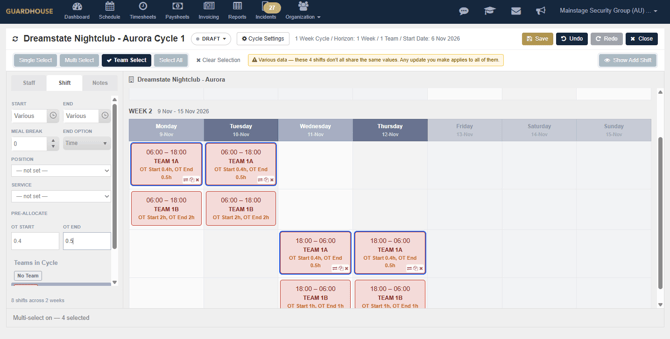
Shifts with pre-allocated overtime show an overtime line, for example OT Start 0.4h, OT End 0.5h, in the cycle's shift details.
What happens to the shifts:
- Every shift created from the cycle keeps its pre-allocated OT start and end hours.
- If a shift is assigned to a staff member on an Award Overtime pay group, the overtime is applied to their pay.
- If a shift is assigned to a staff member who isn't on an Award Overtime pay group, the OT values are ignored and the shift is paid as normal.
How it affects pay
Pre-allocated overtime decides which hours of a shift are paid at the overtime rate. It carries through to the roster's labour cost, the timesheet and the paysheet.
| What you set | Overtime hours |
|---|---|
| Nothing | Hours past the employee's Daily Threshold, counted from the end of the shift |
| All day | The whole shift |
| Shift Start / Shift End | Exactly the hours you enter |
Example. An 11.5-hour shift (06:00–18:00 with a 30-minute unpaid meal break), normal rate $30/h, overtime rate $45/h, Daily Threshold 10 hours.
| What you set | Overtime hours | Normal hours | Shift cost |
|---|---|---|---|
| Nothing | 1.5 | 10 | $367.50 (10 × $30 + 1.5 × $45) |
| All day | 11.5 | 0 | $517.50 (11.5 × $45) |
| 1h start + 1h end | 2 | 9.5 | $375 (9.5 × $30 + 2 × $45) |
All day puts the whole shift at the overtime rate, so it usually raises the cost of the shift the most.
Overnight shifts: start hours count from the beginning of the shift and end hours from the finish, across both days.
The checks Guardhouse applies
When you allocate Shift Start / Shift End hours, Guardhouse checks them against the shift and the employee's settings. All day isn't checked.
- Start + end hours can't be more than the shift length (after breaks).
- If the shift is longer than the ordinary hours, the overtime can't eat into those ordinary hours.
- If the shift is longer than the Daily Threshold, at least the hours past the threshold must be overtime.
- If the shift is shorter than the ordinary hours, you can't allocate part of it. Use All day instead.
Example. A 12-hour shift, ordinary hours 7.6, Daily Threshold 10. Check 2 allows at most 4.4 hours (12 − 7.6). Check 3 needs at least 2 hours (12 − 10). So any total from 2 to 4.4 hours is accepted.
Tip: if no part-shift amount seems to be accepted, compare the employee's ordinary hours and Daily Threshold. When the threshold is lower than the ordinary hours, a part-shift allocation can't meet both checks, and only All day will save.
Troubleshooting
Messages you might see
| Message | What it means | What to do |
|---|---|---|
| Total Shift Start and End hours must not exceed the total shift hours (X). | Start + end hours are more than the shift length after breaks. | Reduce the hours to fit the shift. |
| Total Shift Start and End hours must be at most X hour(s) to meet the target shift requirement. | The overtime would eat into the employee's ordinary hours. | Enter X hours or fewer in total. |
| Total Shift Start and End hours must be at least X hour(s) to meet the overtime requirement. | The shift already goes past the employee's Daily Threshold. | Enter X hours or more in total. |
| Cannot add allocated overtime because total shift hours are below the required working hours of X hours. | The shift is shorter than the employee's ordinary hours. | Use All day if the whole shift is overtime. |
Other common issues
| Issue | Likely cause | What to do |
|---|---|---|
| No Overtime section on the shift | Shift not saved, no staff assigned, pay group isn't Award Overtime, or award overtime isn't turned on | Check the "Before you start" list above |
| No Pre-allocate Overtime option on Shift Patterns | Award overtime isn't turned on | See How to set up award overtime |
| Overtime fields are greyed out | The shift's timesheet has been approved | Ask your administrator if a change is needed |
| The hours I typed changed | Hours that add up to more than the shift are trimmed to fit | Check the total before selecting Apply |
| Overtime disappeared after changing the pay group | Changing a shift's pay group removes its pre-allocated overtime | Add it again after changing the pay group |
| Only All day will save | The employee's Daily Threshold is lower than their ordinary hours | Review the employee's settings (step 4 in the setup article) |
Frequently asked questions
Can I pre-allocate overtime before a shift exists?
Yes, with Cycle Schedules. Enter OT start / OT end hours on the shift pattern, and they carry into the cycle. For a single shift in the Schedule, save the shift and assign a staff member on an Award Overtime pay group first.
Can I pre-allocate overtime on a cycle?
Yes. OT start and OT end hours come across from the pattern, and you can enter or edit them while creating and maintaining the cycle. All day overtime is only available on a shift in the Schedule.
What if a cycle shift with overtime goes to a staff member on a non-award pay group?
The OT hours are ignored and the shift is paid as normal.
Does All day overtime leave the shift cost the same?
No. All day pays every hour at the overtime rate, so it usually increases the cost the most.
Why can't I see the option for some staff?
The shift must use an Award Overtime pay group. Non-Award Overtime pay groups don't support pre-allocated overtime.
Does leave count towards overtime?
Only if Include Leave Hours is on (the company default, or per employee).
Where does pre-allocated overtime show?
It carries through to the roster's labour cost, the timesheet and the paysheet. In reports, it only shows in the Optimise Overtime and Cycle Overtime reports. Running the Optimise Overtime report doesn't update the paysheet, and its results aren't pushed automatically to your payroll system. See How to run the Optimise Overtime and Cycle Overtime reports.
Who do I contact for help?
Guardhouse Support. Include the shift date, site, staff member and a screenshot of any message you see.