
The steps below are the same for company, customer and site documents — only the starting menu differs. This guide uses a site document as the example. Have the file you want to upload ready on your computer.
Open the right record
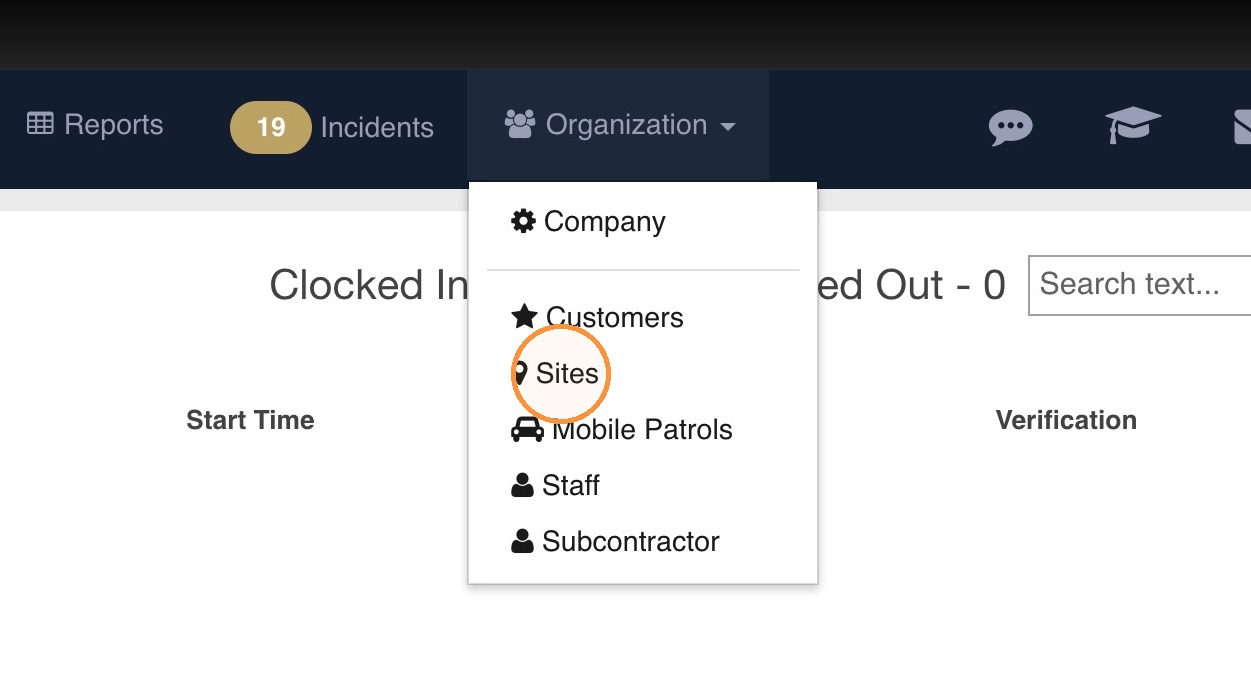
In the top navigation, open Organization and choose where the document belongs — Company, Customers or Sites.
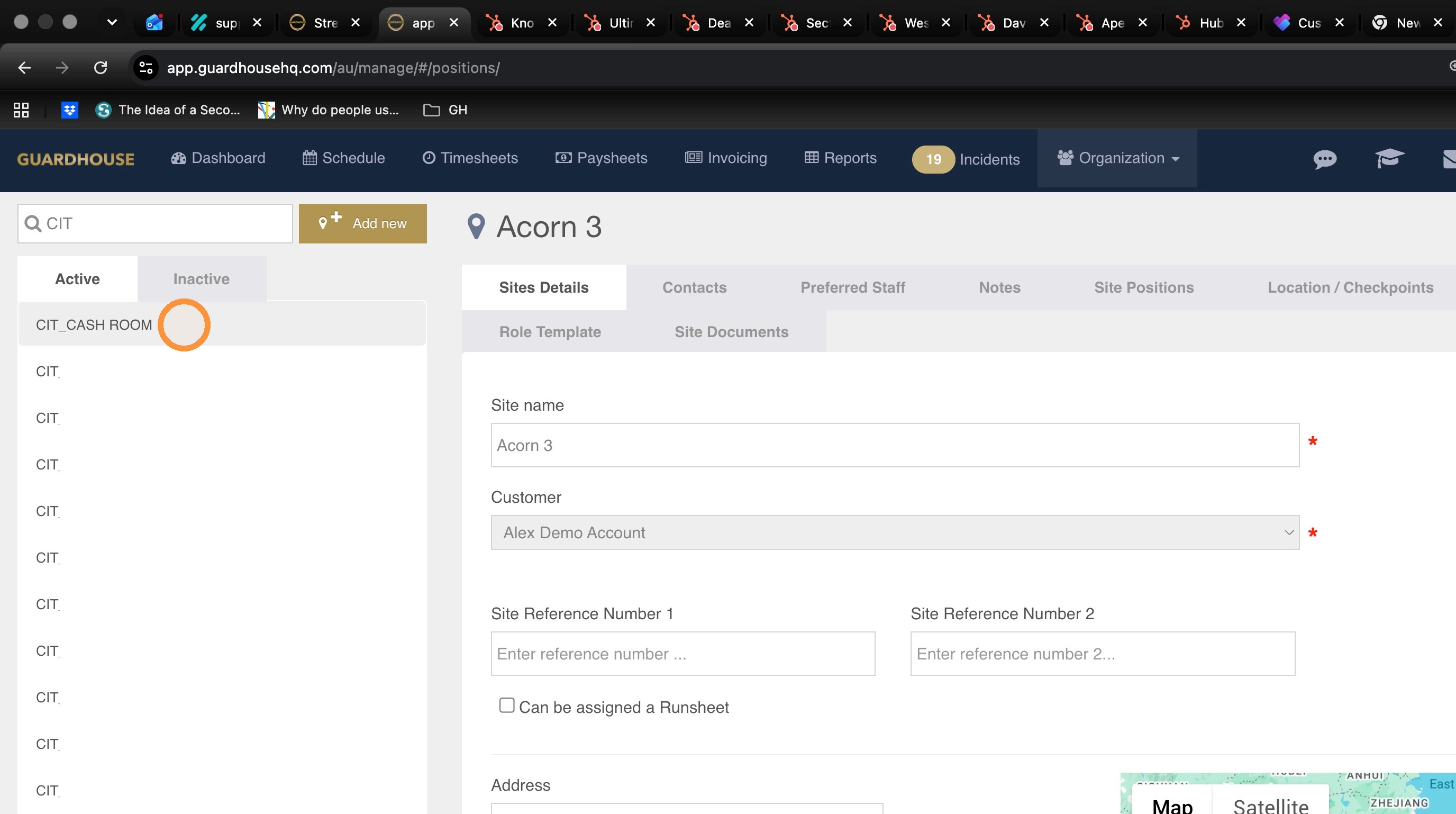
Select the site the document relates to.
Create the document
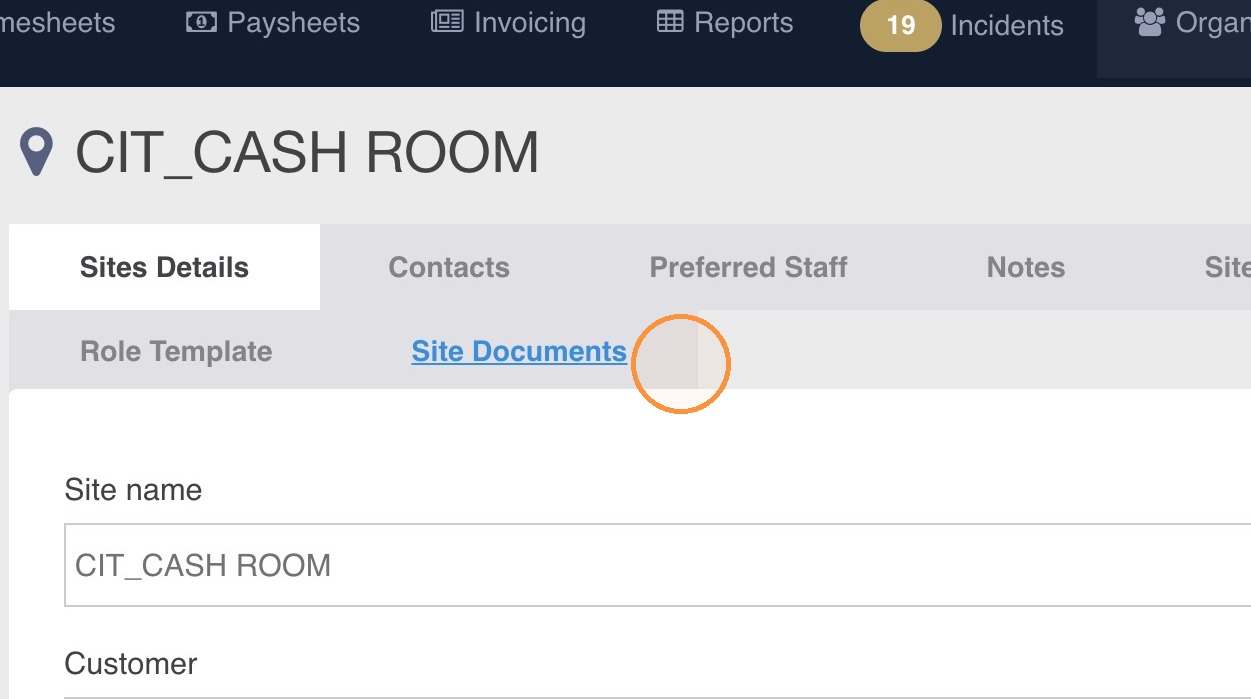
On the site record, click Site Documents.
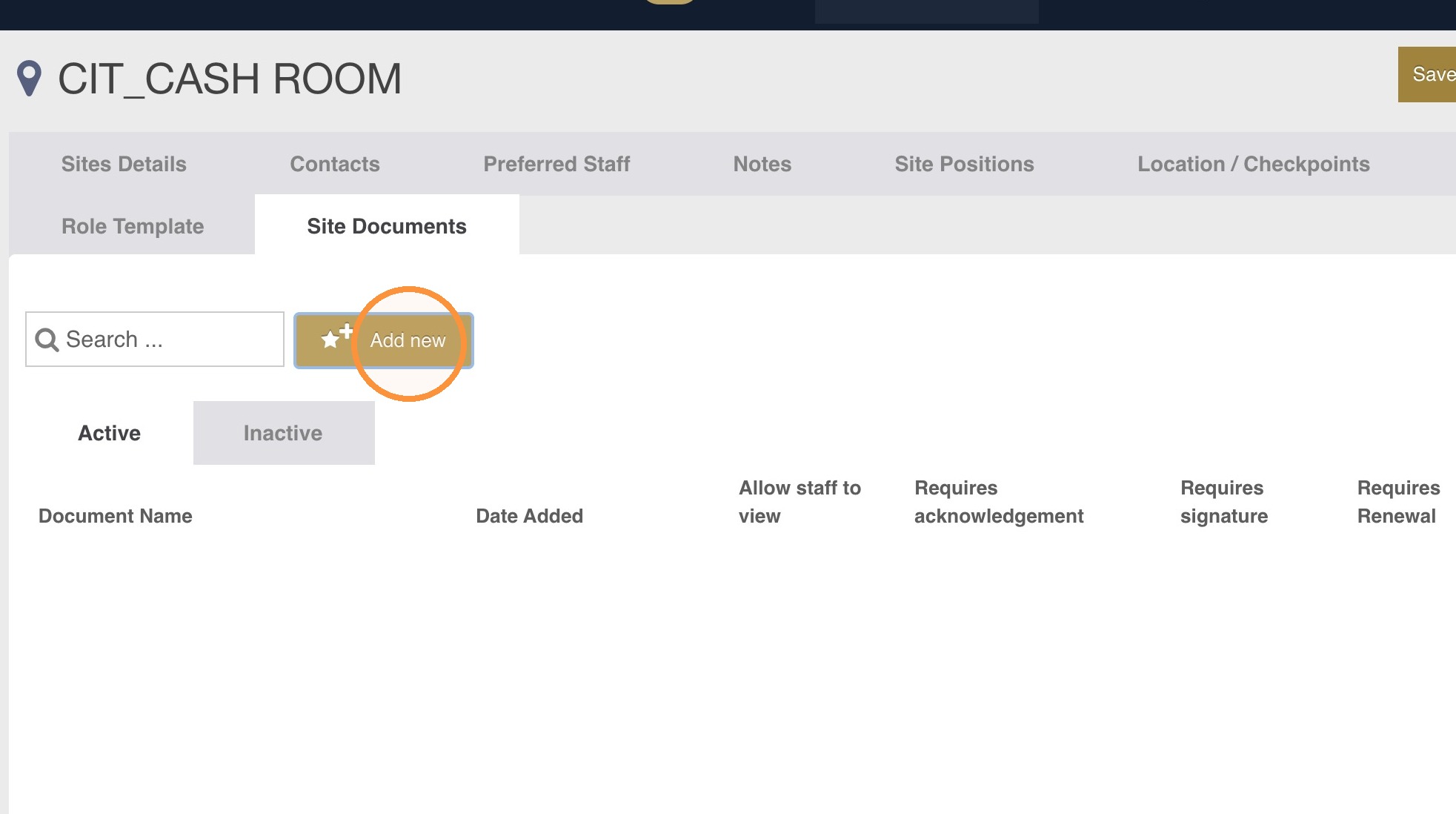
Click Add new.
Enter the name of the document.
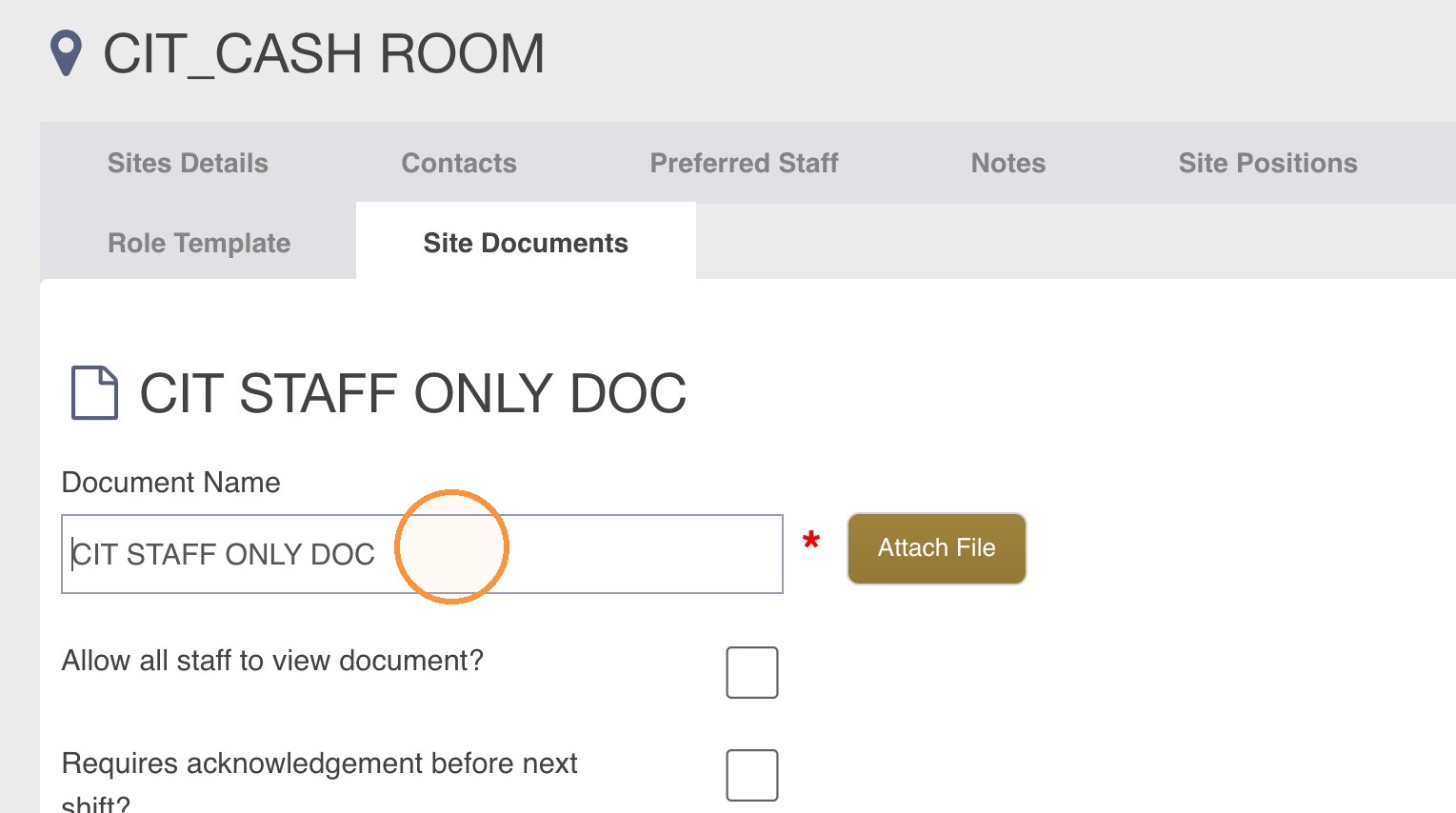
Click Add new to attach the file. Once it is attached the button changes to View File. Click Save.
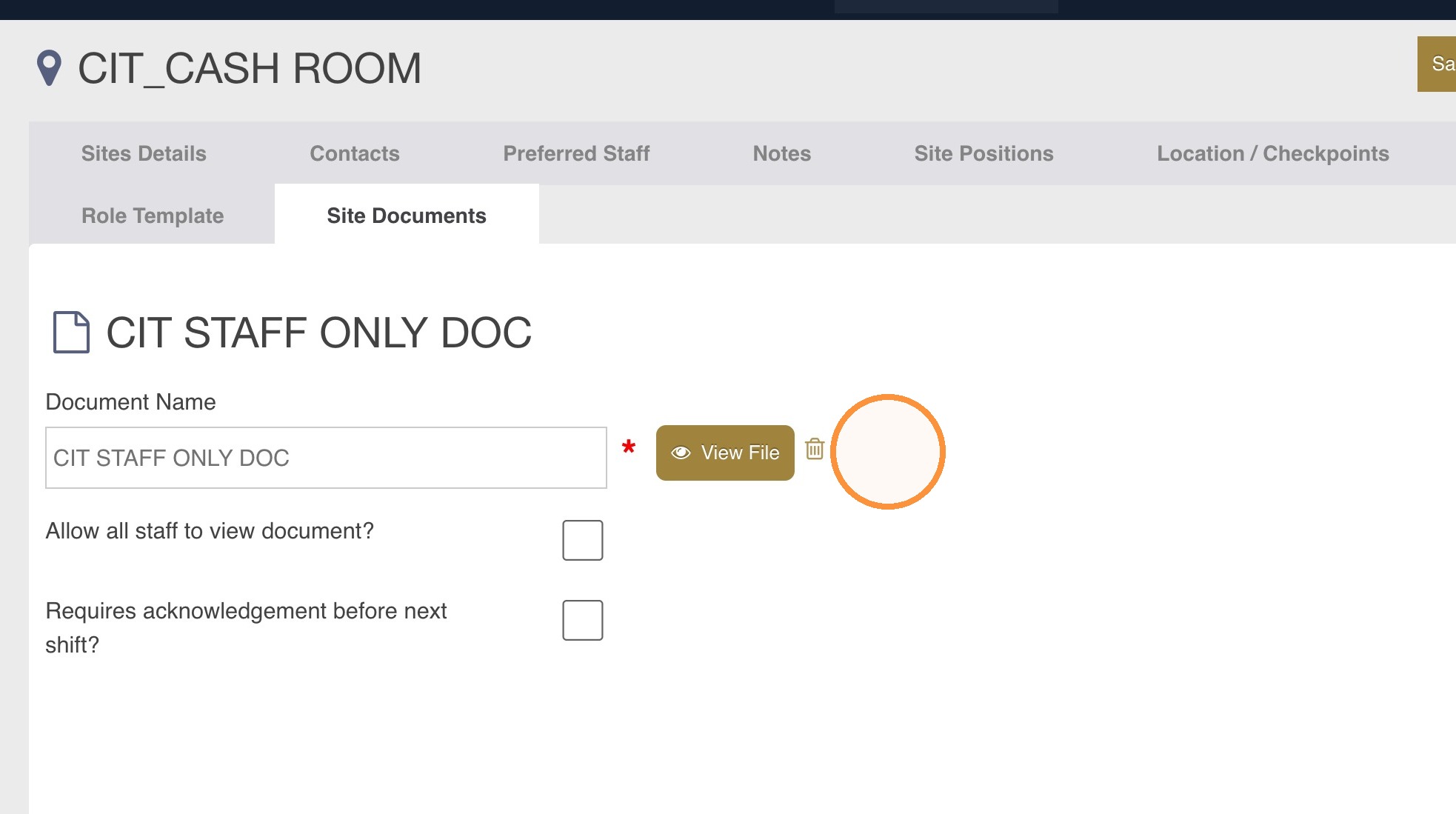
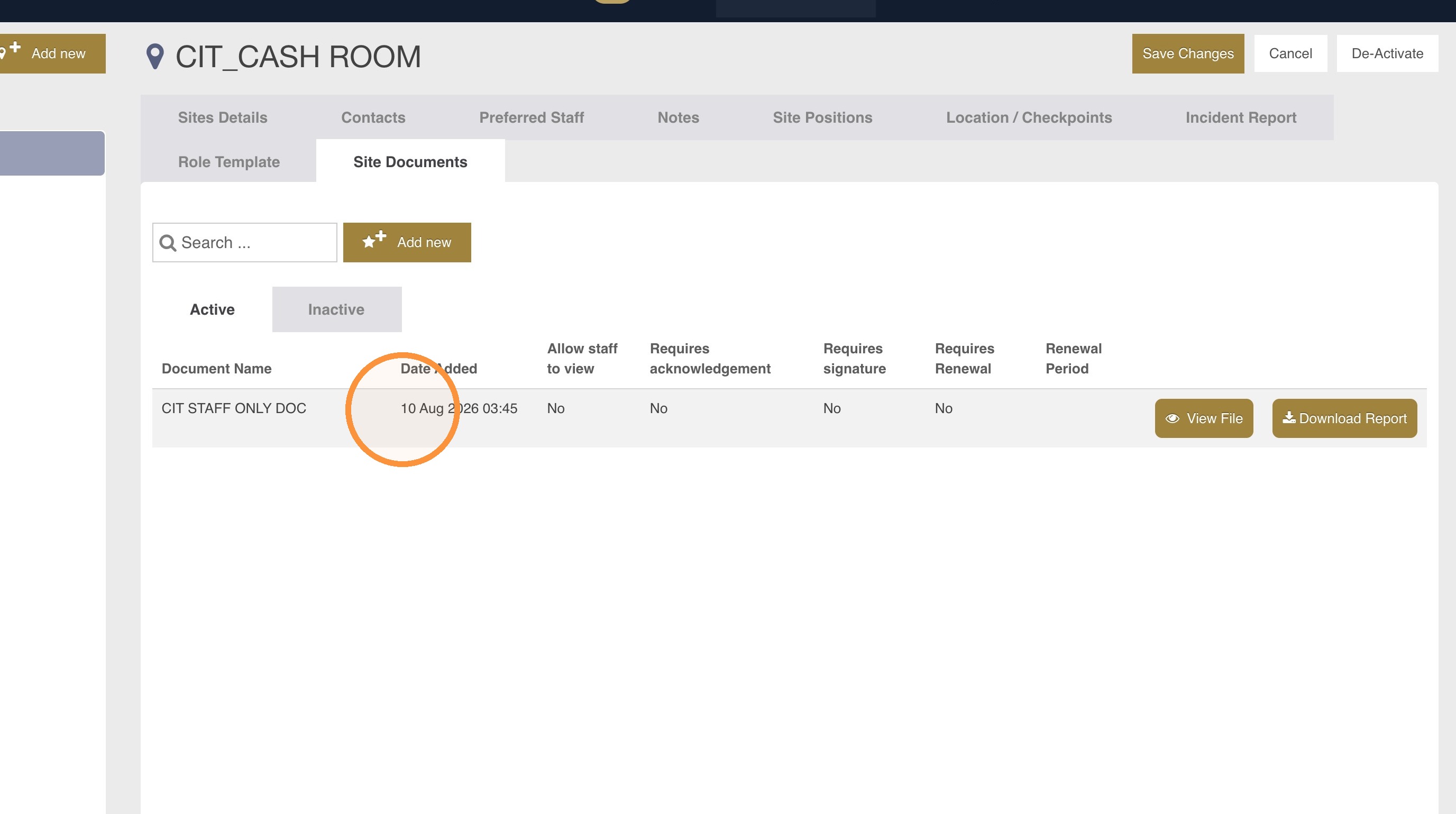
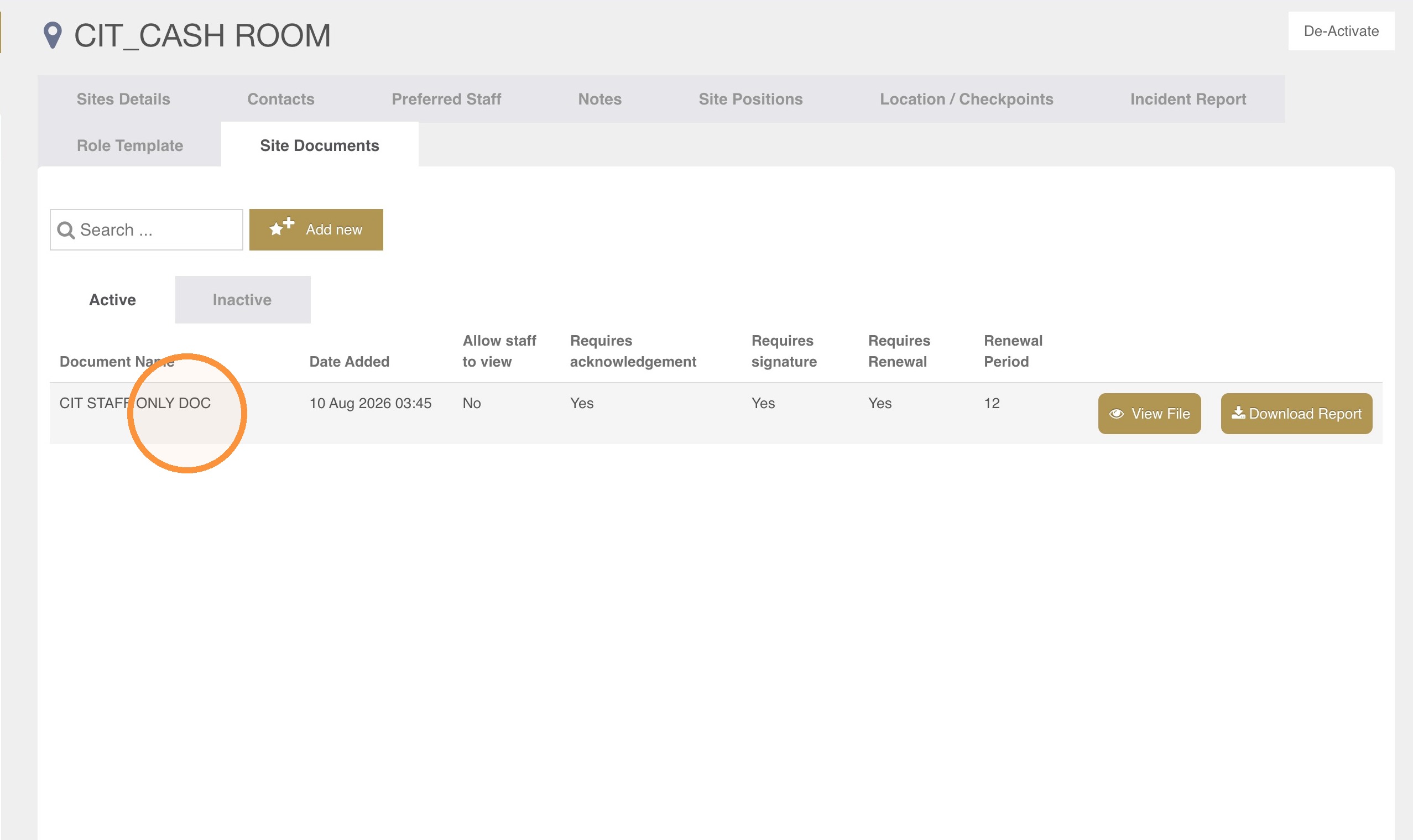
You are returned to the site document list. Open the document again to set its rules and sharing.
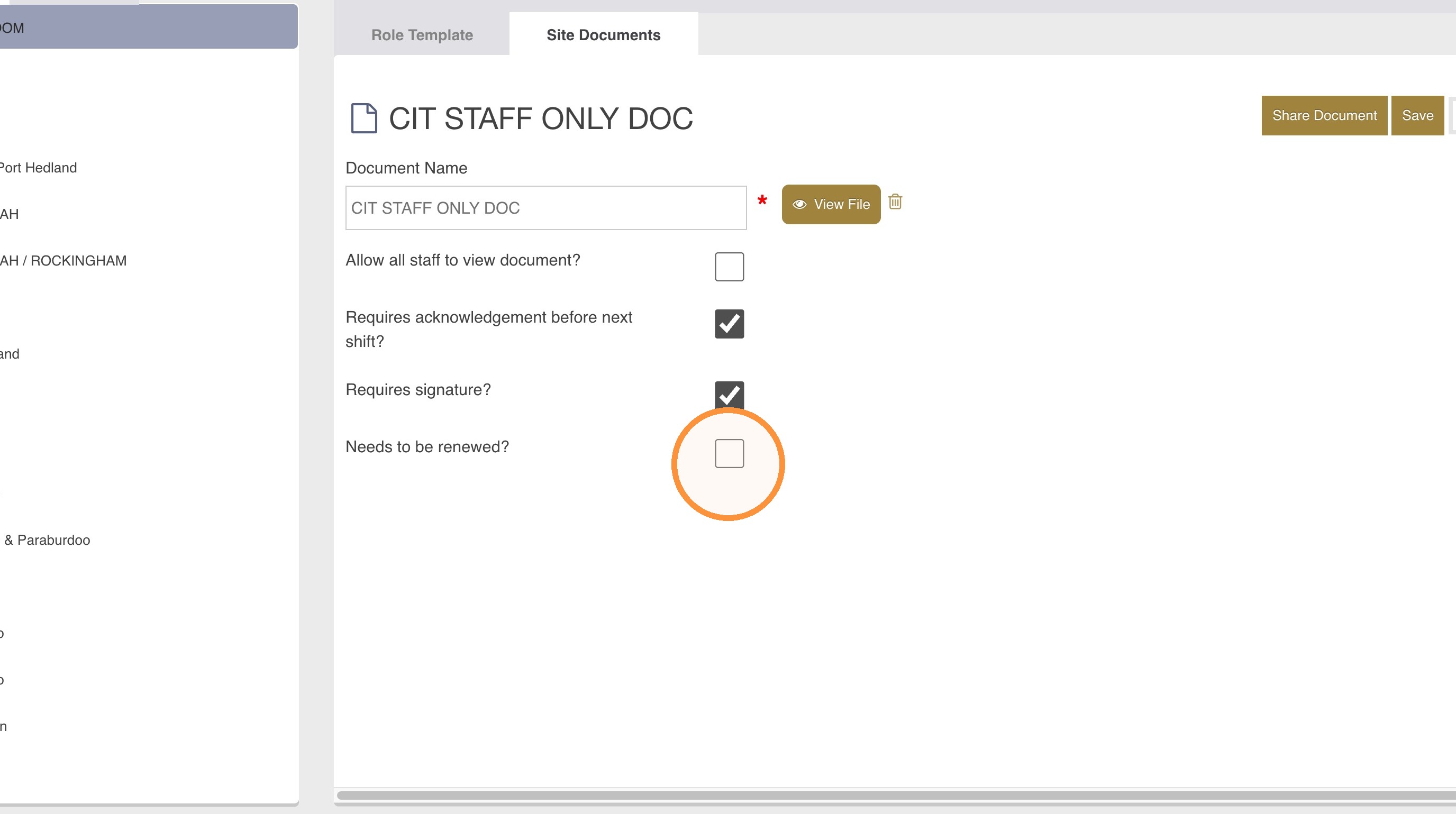
Set the document rules
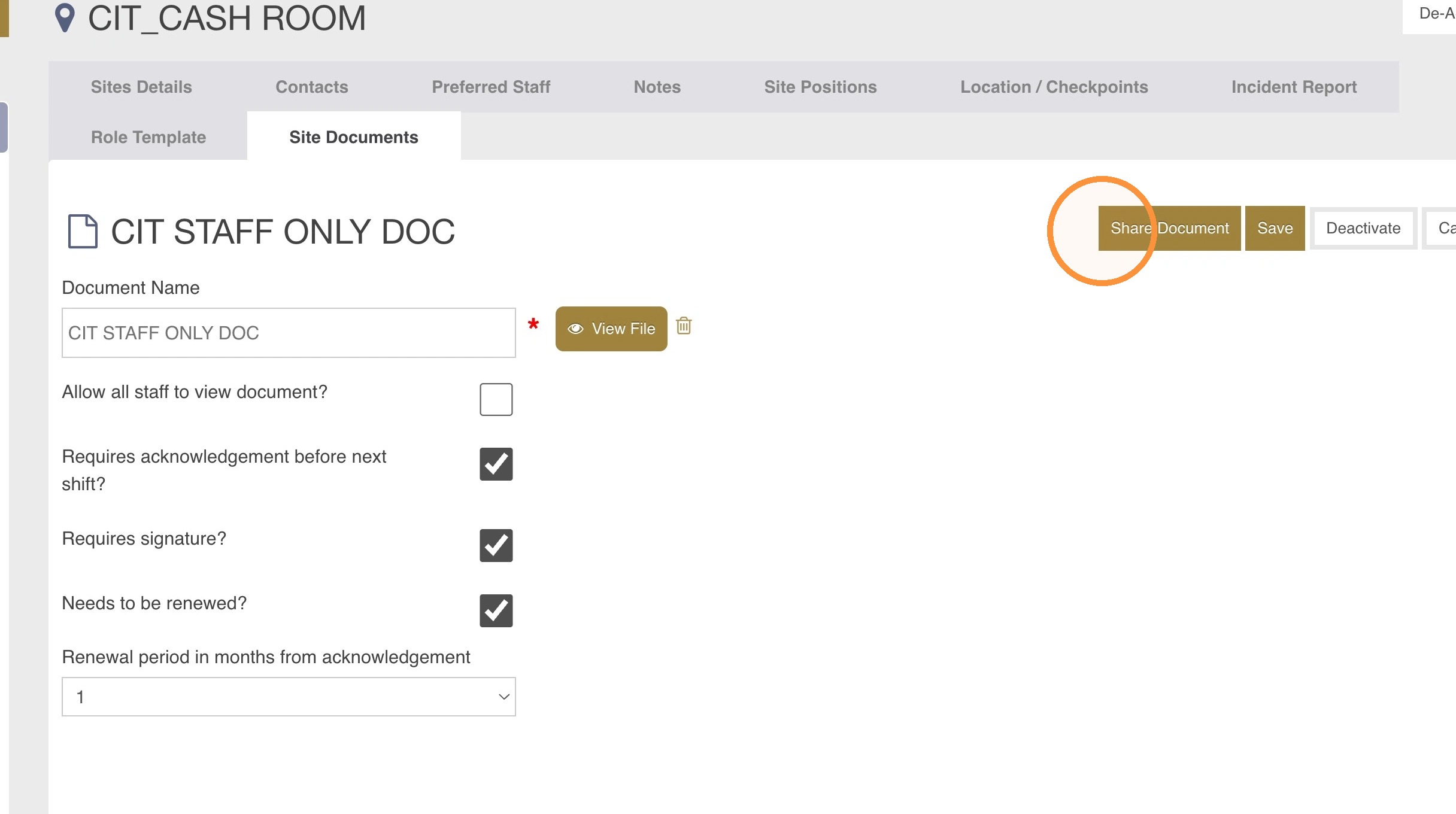
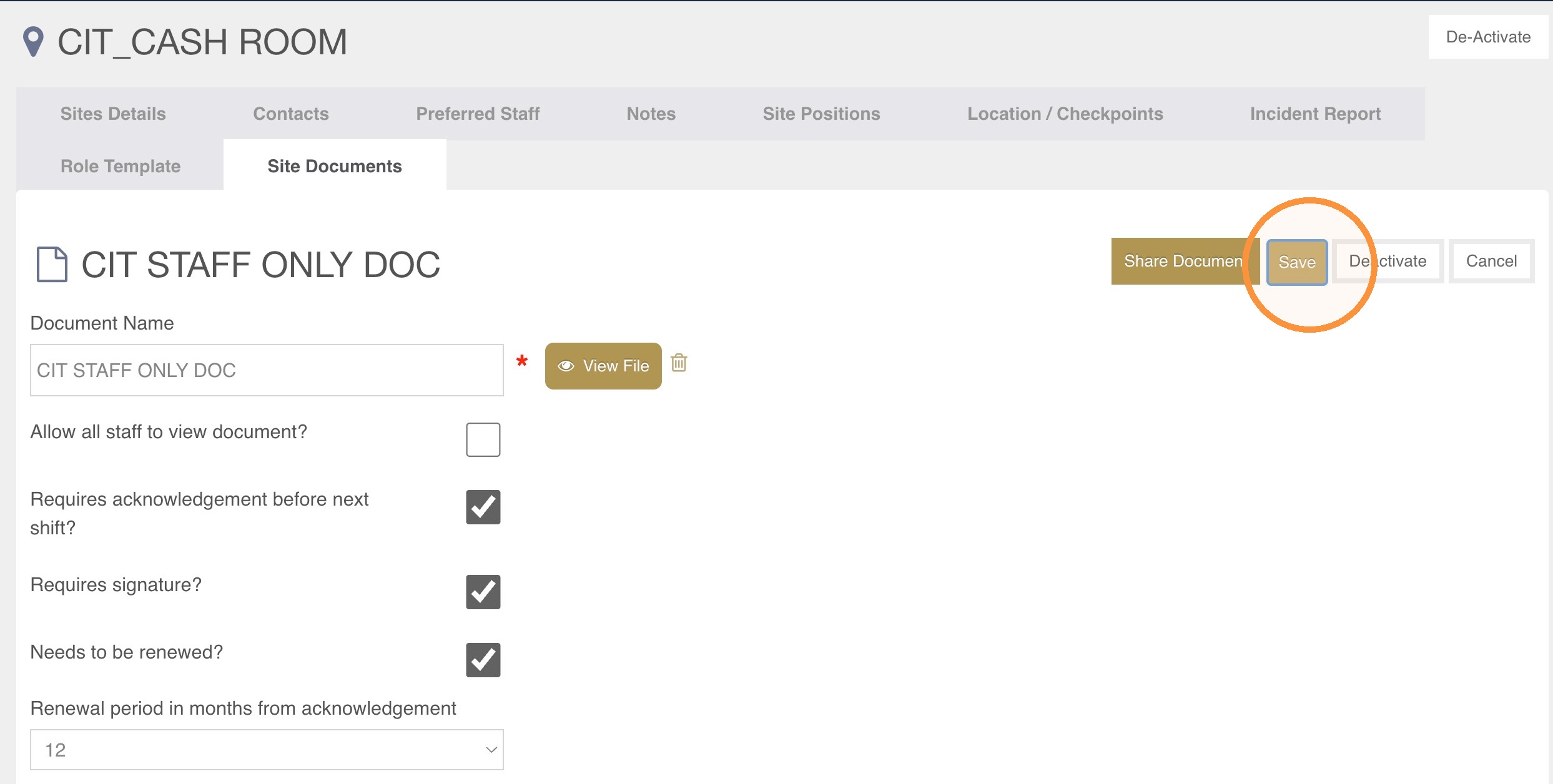
Tick the requirements that apply to this document. For example:
- Must be acknowledged in the Guardhouse app before a staff member can clock in to a shift.
- Must be signed and acknowledged every month, quarter or year again.
With the rules set, click Share Document.
Choose who receives it
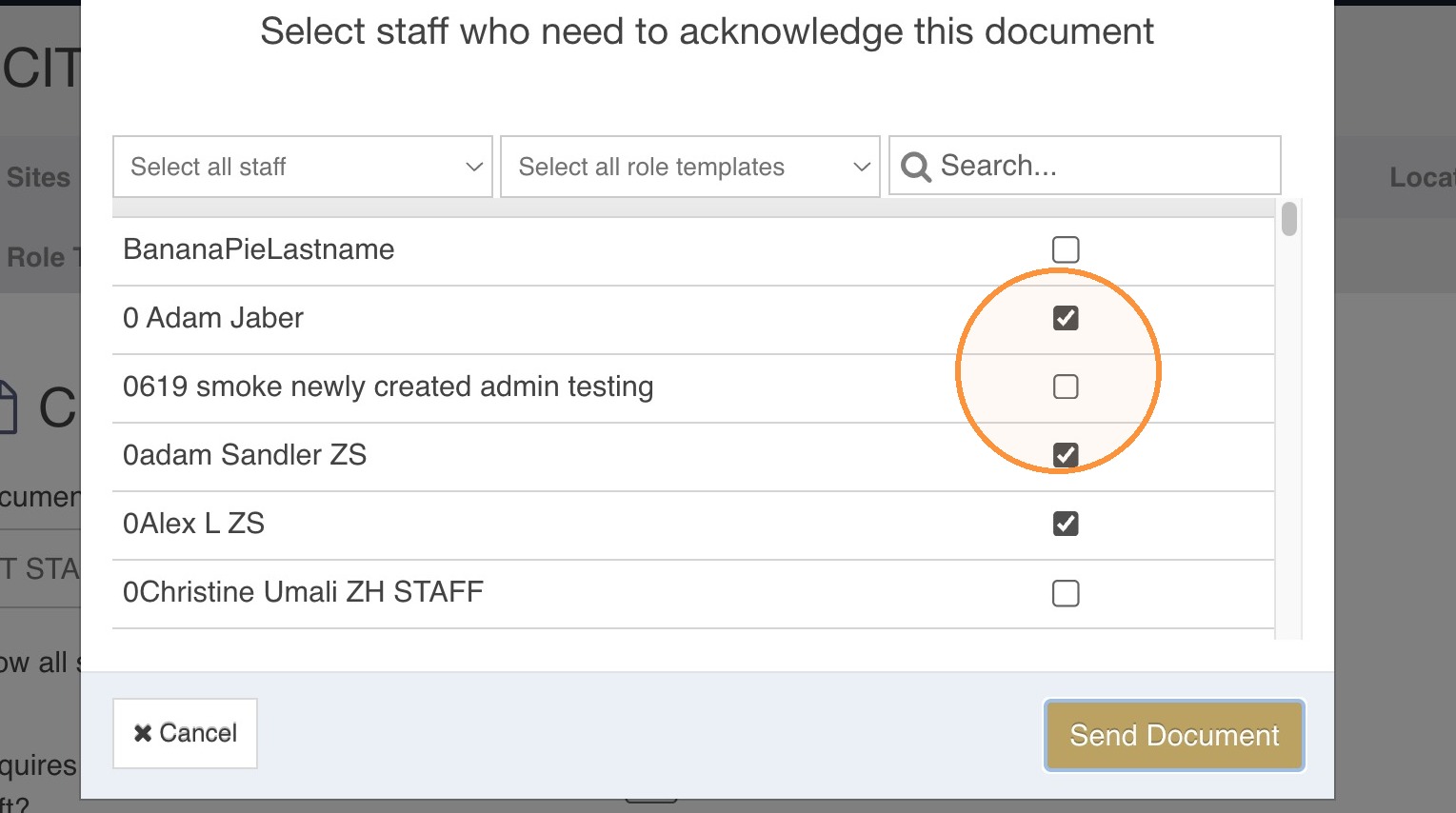
There are four ways to filter the recipient list. Use them on their own or together.
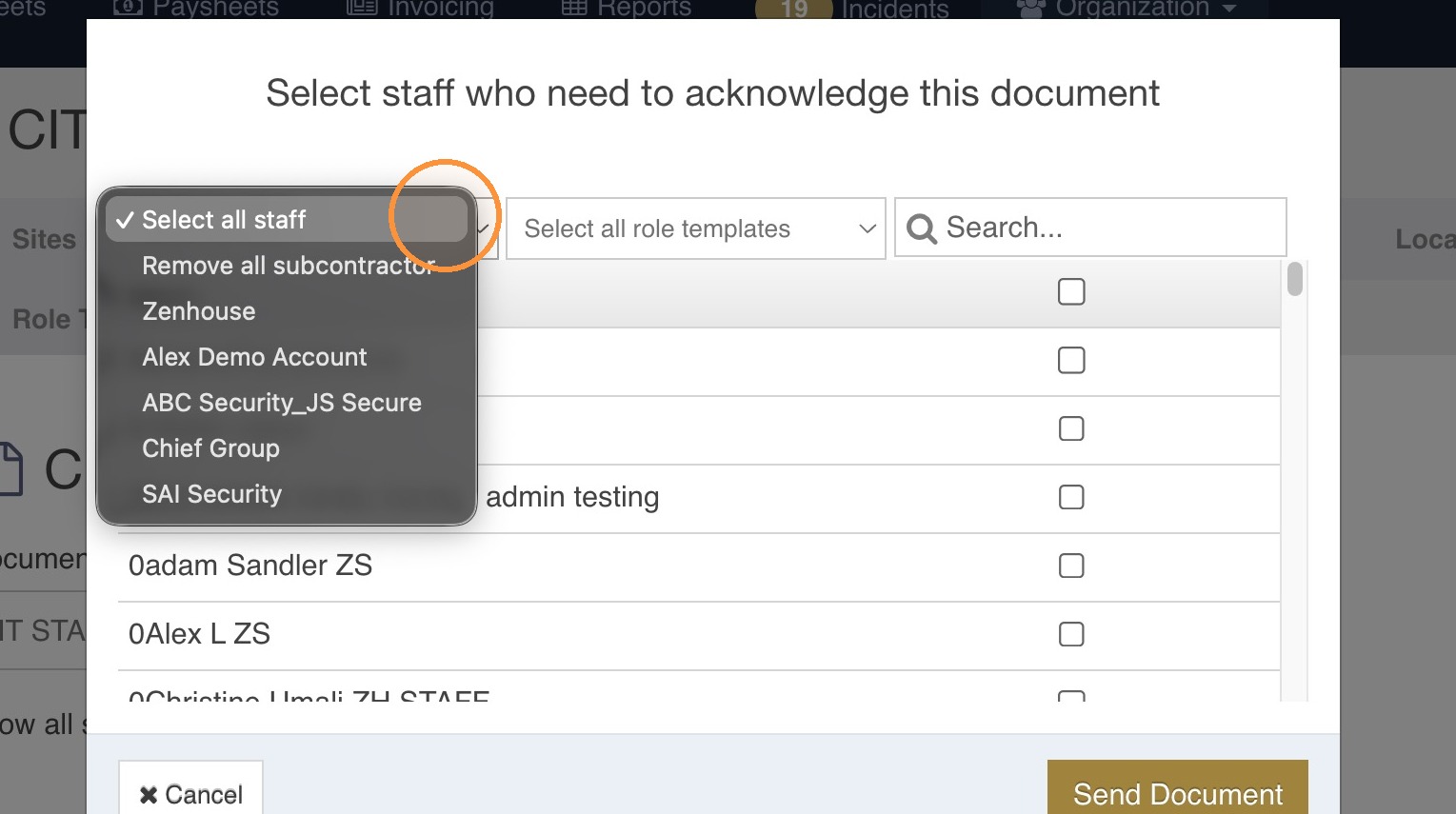
Select staff
Share with your direct staff only (remove all subcontractors), or with certain subcontractors chosen from the subcontractor list.
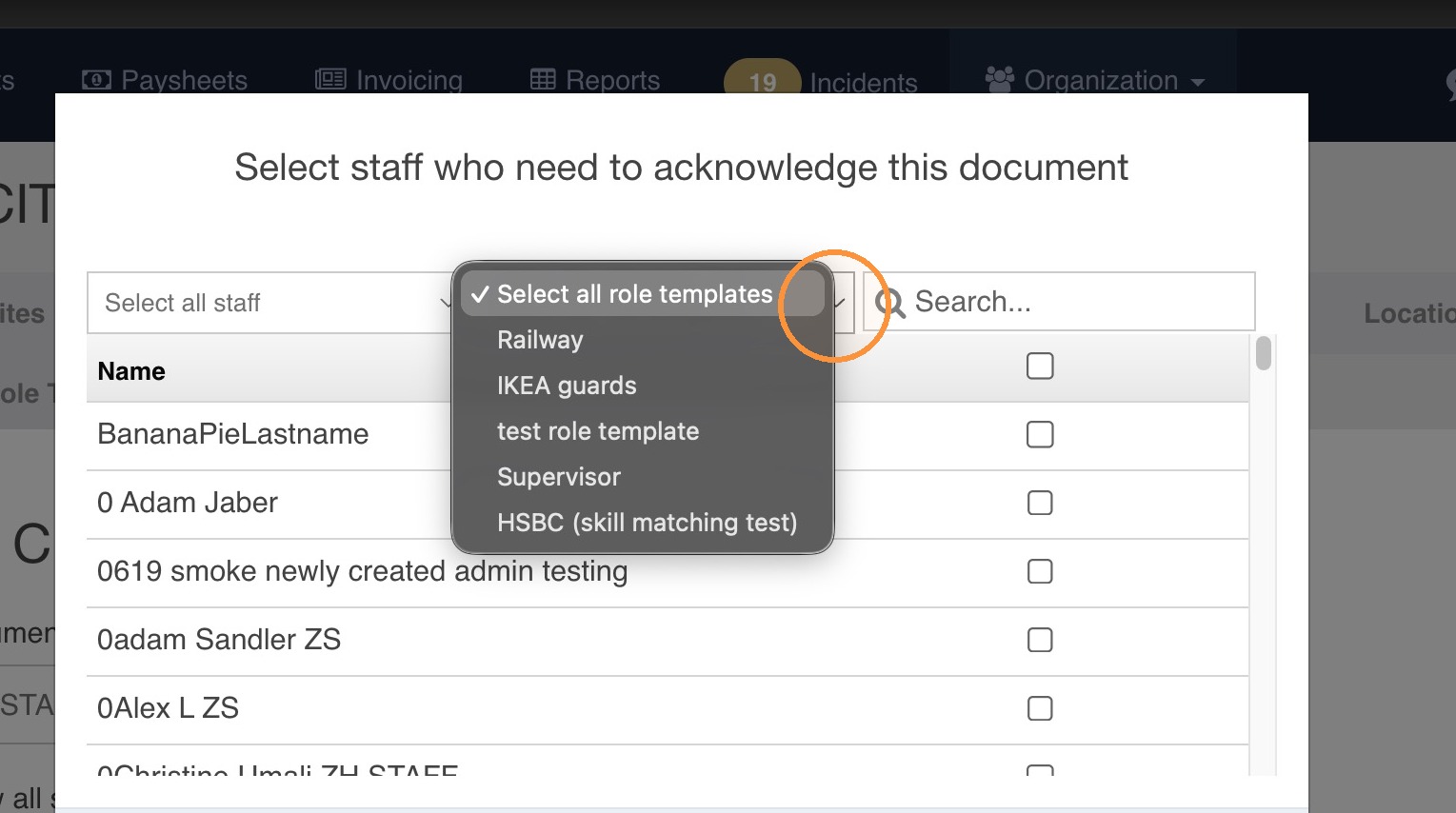
Select all role templates
Send the document to everyone who matches a role template — for example, only employees who meet the RSA role template requirements.
Search
Look up a specific employee you want to send the document to.
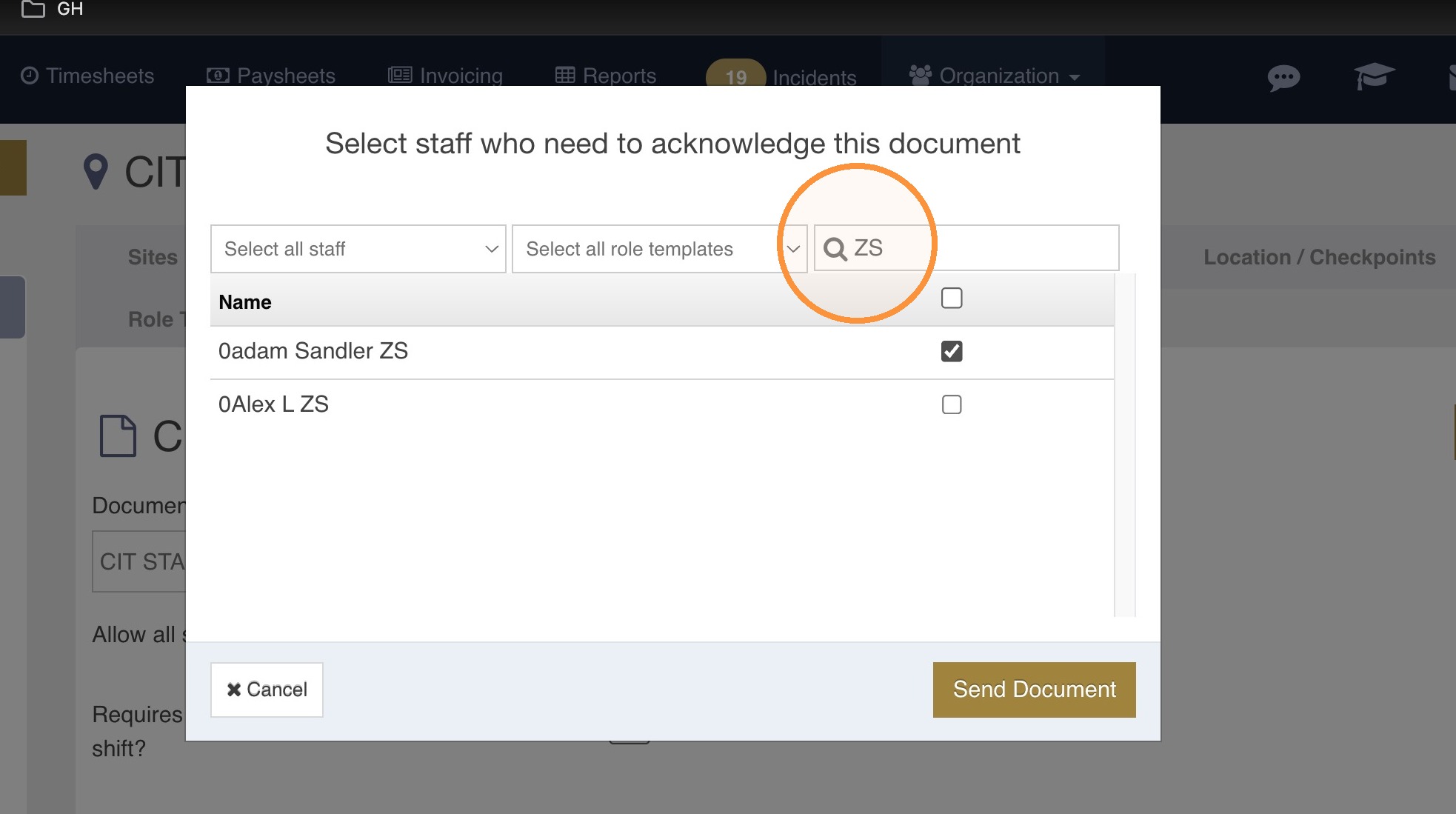
Tick box
Tick the individual names of the employees you want to share the document with.
Send, save and check
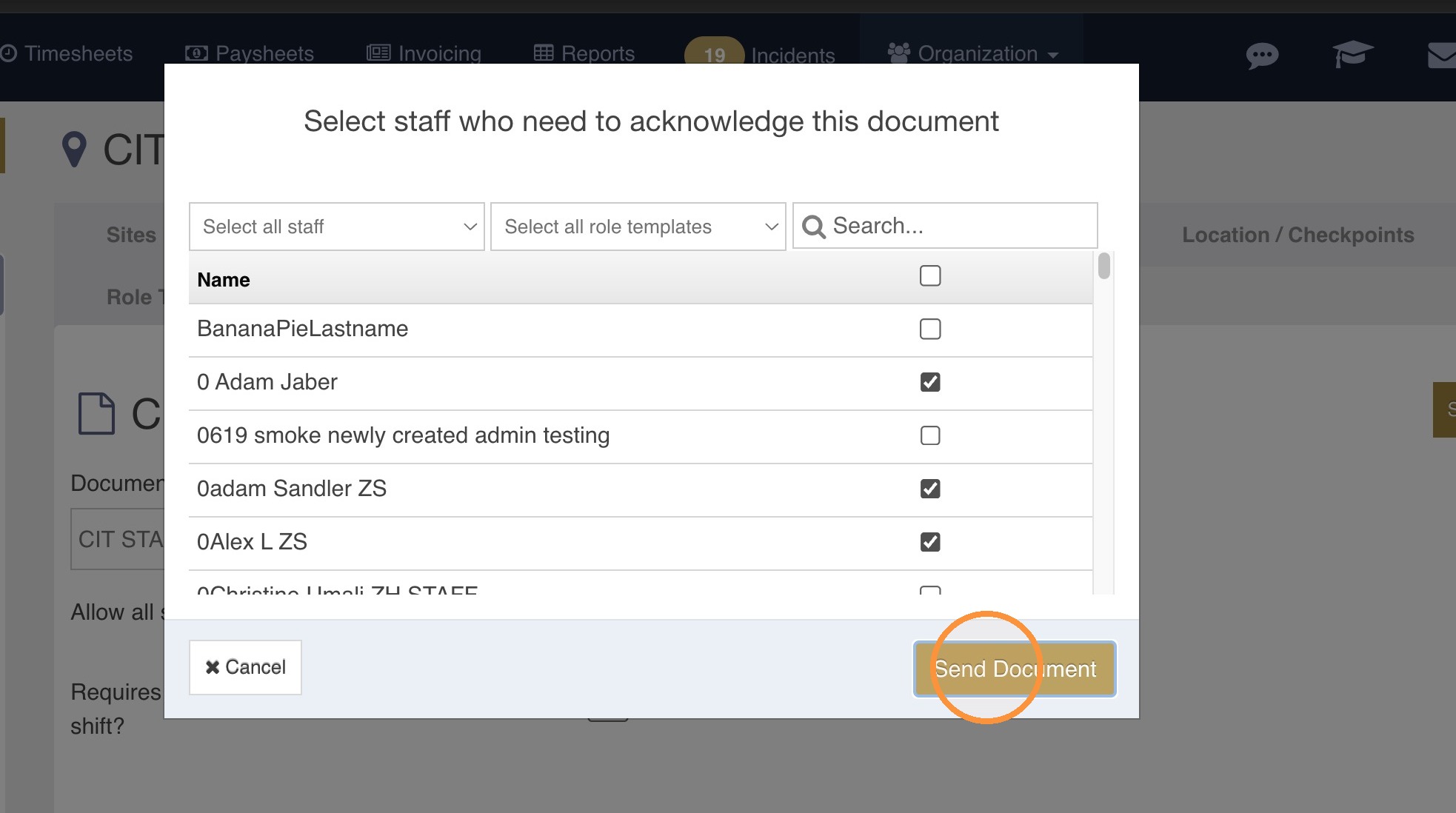
When your recipient list is right, click Send Document.
Click Save.
Open the document one more time to verify the saved settings and recipients, and edit anything that needs changing.
Quick recap
- Organization → Company, Customers or Sites, then open the record.
- Open the documents tab and click Add new.
- Name the document, attach the file, save.
- Reopen it, tick the acknowledgement and renewal rules.
- Click Share Document, filter the recipients, then Send Document and Save.
Good to know
-
Can I add more people later?
Yes. Open the document, click Share Document again, select the extra people and send. People who already have it are not sent it twice.
-
Does anyone else see the document?
Only the people included in the share list see it in the Guardhouse app. Everyone else at the site is unaffected.
-
The document must be read before a shift — what happens?
If you ticked the acknowledgement requirement, staff are prompted in the app and cannot clock in to the shift until they have acknowledged it.