
For this integration, you need to be using Security Registers. For more information on Security Registers and their platform, please visit their website.
Before starting, please reach out to your Customer Success manager to enable the integration on your account.
Configuring your Guardhouse account for the Security Registers Integration
These are the settings you need enable in your account for the Security Registers integration.
Subcontractor accounts need to enable the same settings.
Enable Timeclock Settings
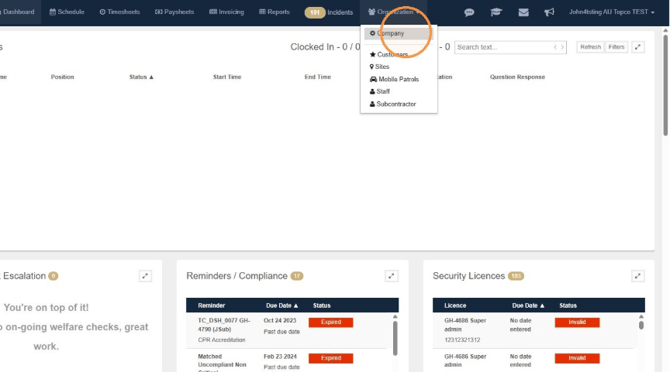
- Login to the Guardhouse app. Click Organization > Company
- Click the Timeclock tab
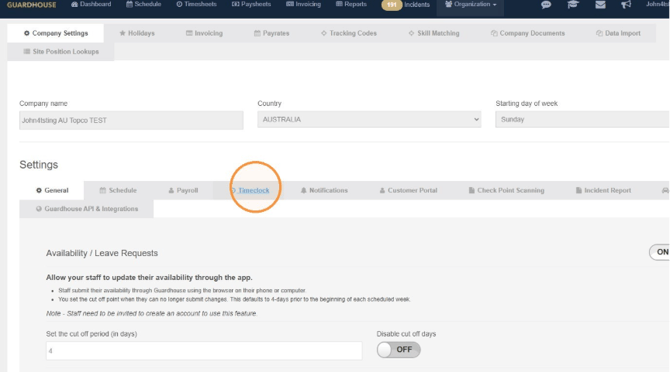
- Under Mobile Phone Timeclock Enabled toggle the switch to ON.
Under Custom ID Capture toggle the switch to ON.
You will need to ensure at least one Custom ID field is entered as Badge Number.
These updates will automatically save.
Check your Site
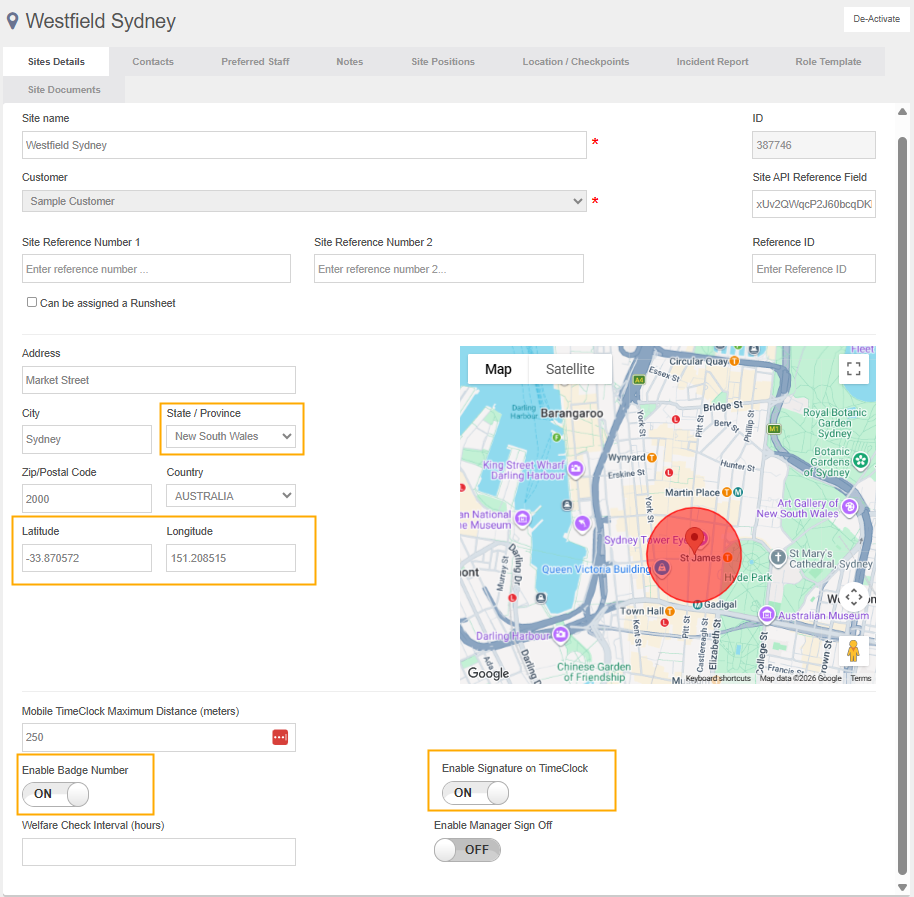
For each site that you are configuring for the Security Registers integration, please check the following:
Under Site Details:
- State/Province is set
- Latitude and Longitude value is set
- The Enable Signature on Timeclock toggle is ON
- The Enable Badge Number toggle is ON
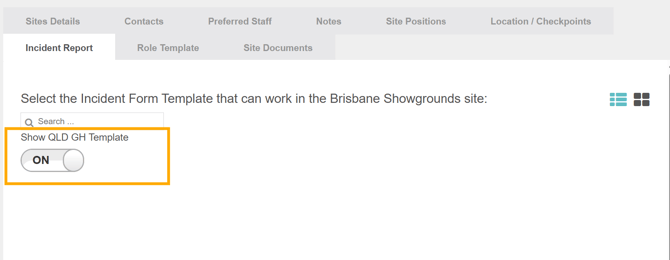
Under Incident Report:
-
The Show <State> GH Template is toggled ON
Getting the API Key from Security Registers
- Login to the Security Registers portal, click on the Venues Tab from the task bar.
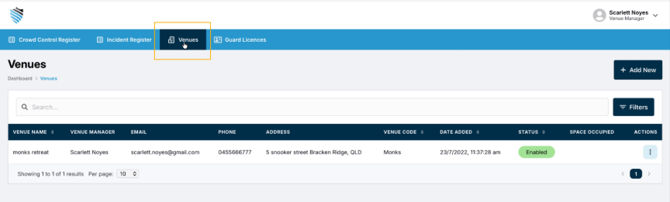
- Click the 3 dots under the Actions Tab
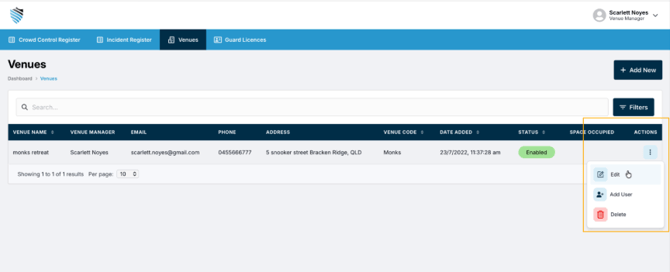
- Click the Edit button to take you to the Edit Venue Page.

- Scroll to the bottom of the page and click Rotate to generate the API key.
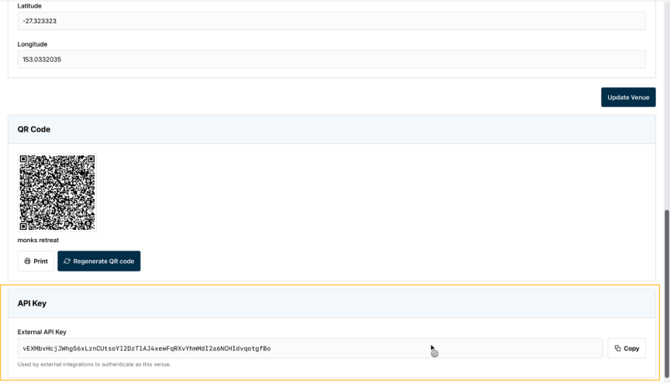
Adding the API Key to Guardhouse
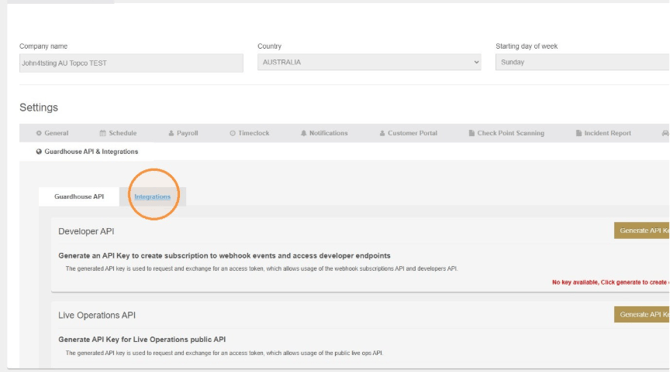
- At the top of the page, click the Guardhouse API & Integrations tab
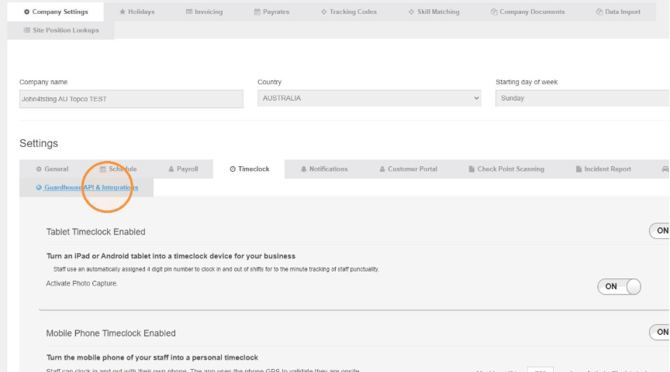
- Click the Integrations tab
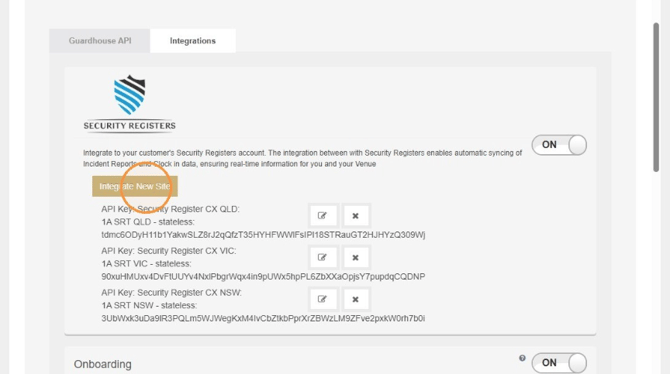
- Click Integrate New Site
- Fill in the pop-up form requesting:
Select Customer
Select Site
Security Registers ID (API Key found in Security Registers Portal)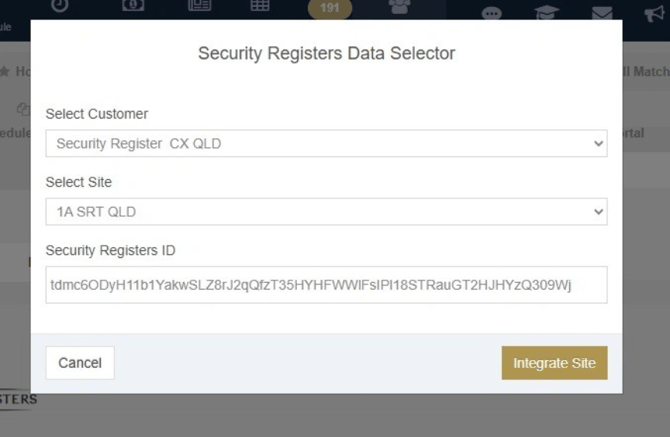
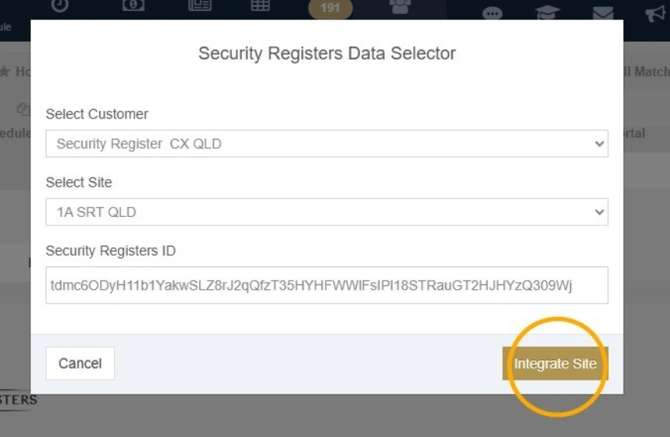
- Once completed, click Integrate Site
- Once the site has been integrated it will display in the list below.
From this list, you can edit existing sites or delete sites.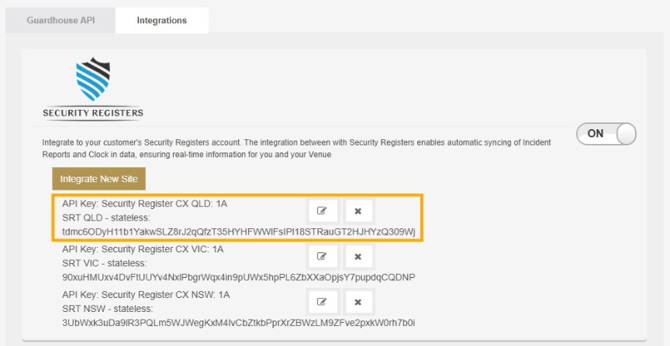
-
Throughout the shift, personnel remain within Guardhouse app for standard attendance tracking, activity logging, and day-to-day operational workflows.
Clock-in Sync with Security Registers
Clock-in attendance is automatically synchronized with Security Registers, allowing guards to continue using Guardhouse without switching between apps. Venue operators can view attendance information in Security Registers as it becomes available.
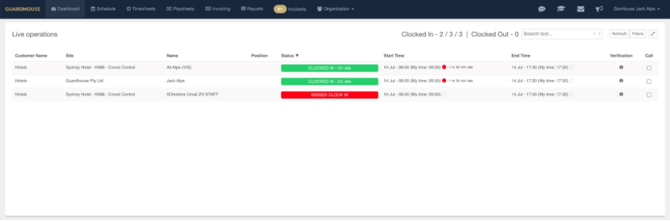

At shift commencement, the integration triggers a real-time licence validation check.
Incident Reports Are Recorded
If an incident, eviction, injury, or venue event occurs, personnel document it directly within the Guardhouse app, attaching supporting photos and media in real time. 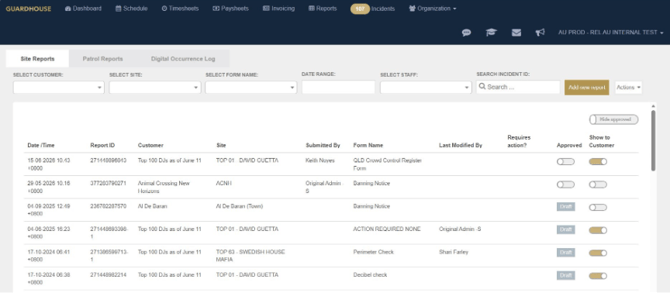
Incident Reports are shared with Security Registers
Incident reports automatically shared between Guardhouse and Security Registers through a direct system integration, supporting venue reporting requirements and reducing duplicate back-office administration. 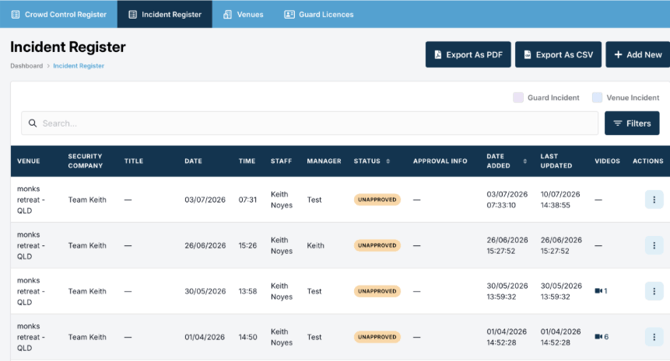
Guard Clocks Out
At shift completion, the guard clocks out through the Guardhouse app. Shift attendance is automatically shared with Security Registers, keeping workforce records aligned across both platforms.

Frequently Asked Questions
Why can’t I see my staff in the Security Registers Portal?
All staff and subcontractors must have their Security Licence (both licence details and image of licence) uploaded into Guardhouse for the information to be passed to Security Registers and visible in the Security Registers portal.
I can't see the State incident report in Guardhouse?
Double-check that you have the State GH Template enabled for your site. Go to your site and navigate to 'Incident Report' tab and toggle on 'Show State GH Template'. NB: State = your state e.g. QLD, NSW, VIC.