
A new cycle starts as a Draft, and nothing is on your Schedule yet. Activating it tells Guardhouse to start creating the cycle's shifts on the Schedule, for as many weeks ahead as the cycle's Schedule Horizon.
Can't see Edit Cycle? See Troubleshooting Cycle Schedules.
Before you start
- The cycle has at least one shift. A cycle with no shifts can't be activated ("Add at least one shift before activating the cycle.").
- You've checked the cycle's staff, times and notes. See How to edit a cycle schedule.
- You know the start date. It can't be earlier than today.
1. Open the cycle
On the Schedule, with Schedule by set to Sites, select the site name, then Edit Cycle, then the cycle. See How to edit a cycle schedule.
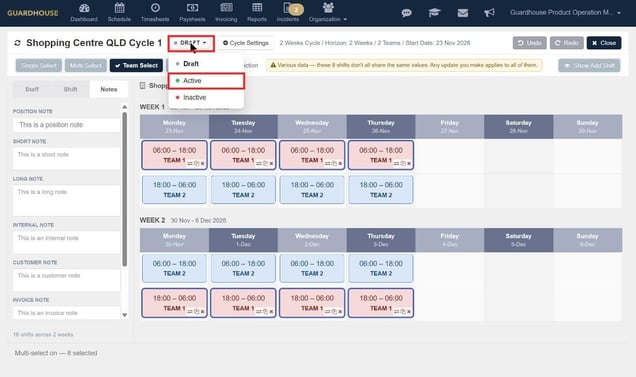
2. Choose Active
Select the status (Draft) at the top of the page, then choose Active. Nothing changes yet. The Activate Cycle? window opens first:
This cycle will become Active. Confirm or change the start date below — it cannot be earlier than today.
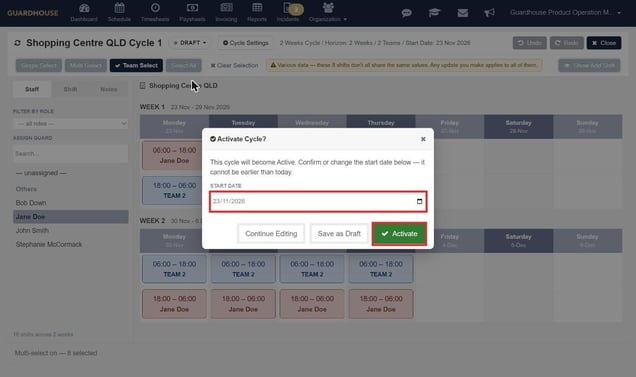
You can also reach the same window by selecting Save on a Draft cycle.
3. Check the start date
The Start Date shows the cycle's current start date. If that date has already passed, change it to today or later, or Guardhouse will tell you "Start date cannot be earlier than today."
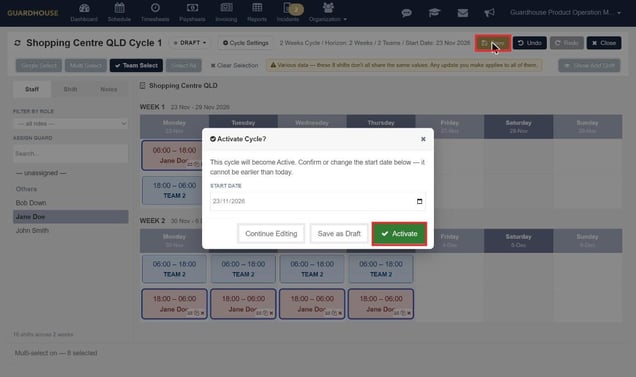
4. Choose what to do
- Activate: saves the cycle and makes it Active.
- Save as Draft: saves your changes but keeps the cycle as a Draft. You'll see "Cycle saved."
- Continue Editing: closes the window and changes nothing.
5. Wait for the shifts to load
After you select Activate, an Activating cycle screen appears: "Loading the cycle's shifts onto the Schedule. This can take a little while for a long horizon. You will be taken to the Schedule as soon as it is done."
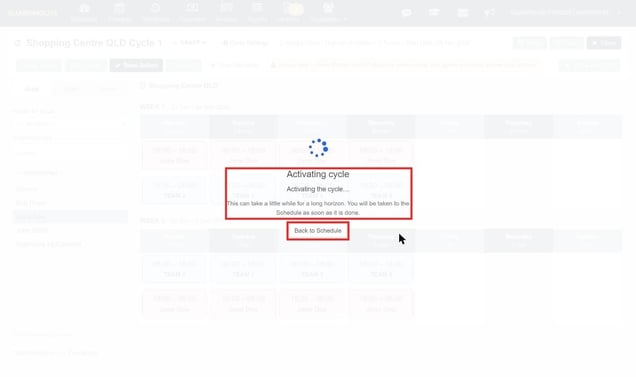
- You can select Back to Schedule and carry on. The loading continues in the background.
- While it runs, the cycle shows a Processing badge and can't be edited.
- On the test account it took a couple of minutes for a 2-week cycle. A long horizon takes longer.
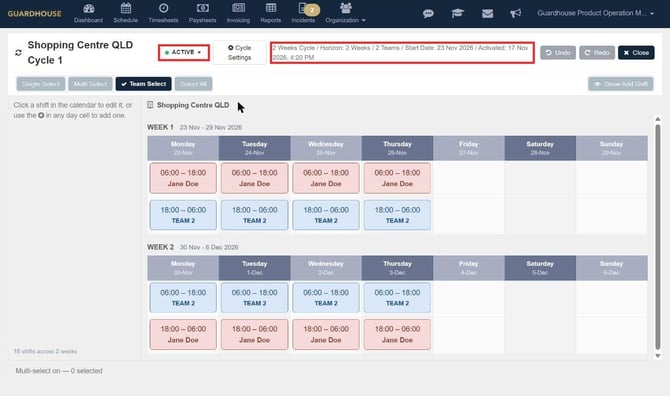
When it's done, the cycle's status shows Active, and the header shows when it was activated (for example "Activated: 17 Nov 2026, 2:44 PM"). A View From button also appears.
What you'll see on the Schedule
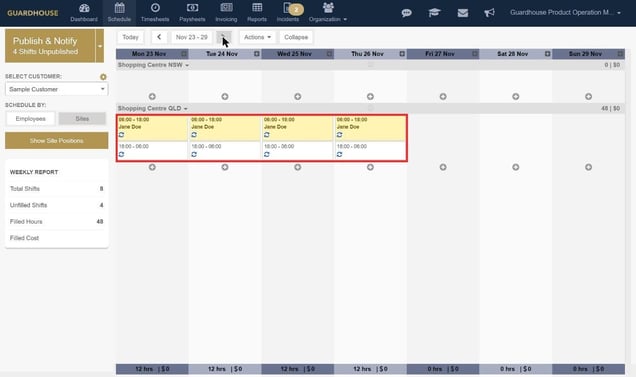
- The cycle's shifts appear for the weeks covered by the Schedule Horizon, each with a small blue cycle icon.
- Shifts with a person assigned in the cycle appear with that person. They are unpublished, so they show in yellow and are counted under Publish & Notify until you publish them as usual.
- Shifts with nobody assigned appear as unfilled shifts.
- After the first load, Guardhouse tops up the Schedule automatically every Sunday at 00:00 (server time) with the next full Monday to Sunday week.
Once a cycle is Active
- An Active cycle can't go back to Draft.
- The Start Date and number of weeks are locked. You can still change the Schedule Horizon in Cycle Settings.
- To change shifts, edit the cycle and use Save and Release. See How to edit a cycle schedule.
- To stop a cycle, see How to end or delete a cycle schedule.