
A shift pattern is a reusable template for a repeating roster: how many weeks it runs, how many teams there are, and which shift each team works on each day. You build it once, then load it into a cycle at any site. See How to create a cycle schedule.
A pattern is only a template. Changing or deactivating it later does not change cycles you've already created from it.
Before you start
- Super Admins and Admins can use Shift Patterns by default. If you can't see the Shift Patterns tab, see Troubleshooting Cycle Schedules.
Watch: how to build a shift pattern (about 4 minutes)
Build a Shift Pattern
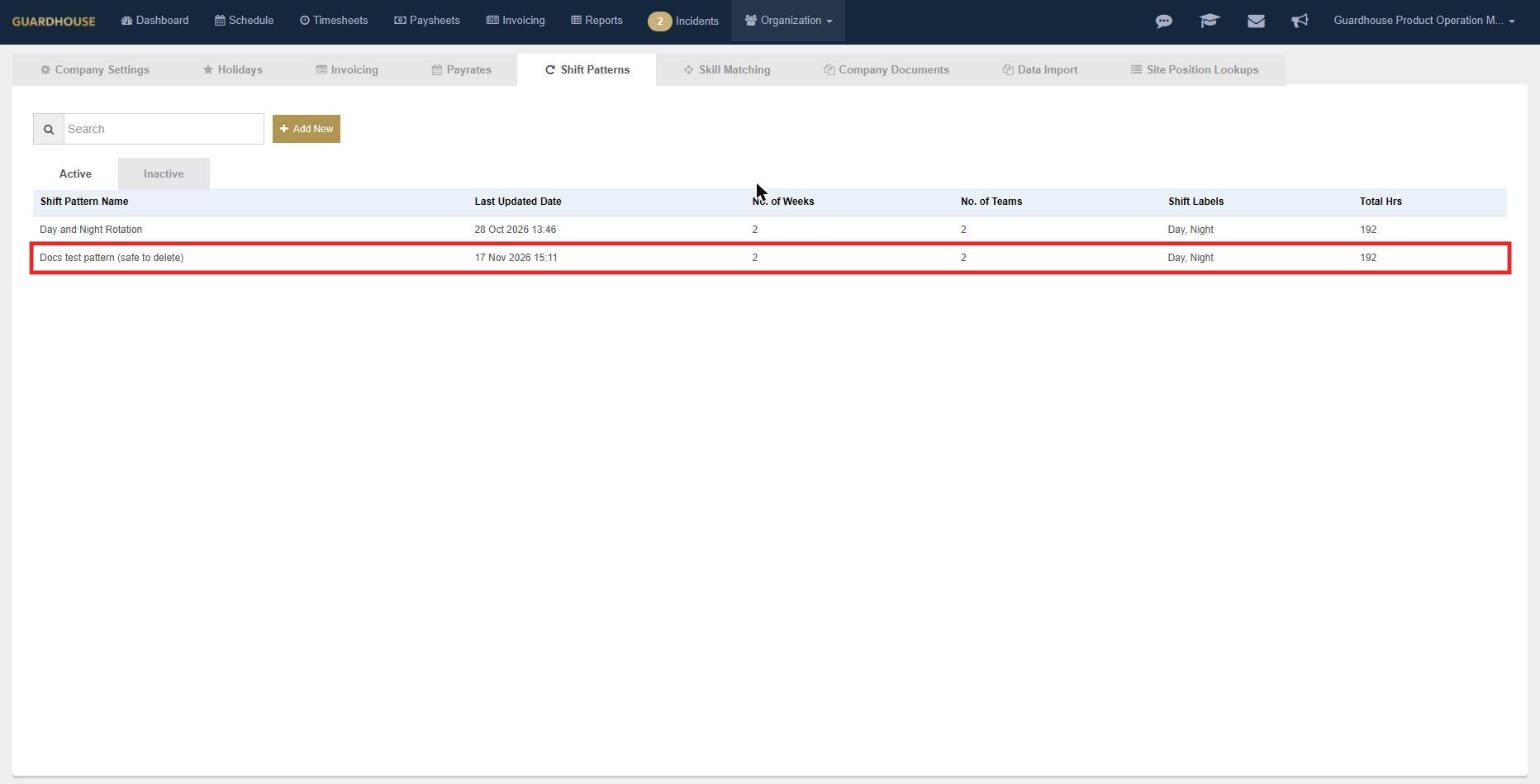
- Go to Organization > Company and select the Shift Patterns tab. You'll see your Active and Inactive patterns, with columns for name, last updated, number of weeks, number of teams, shift labels and total hours.
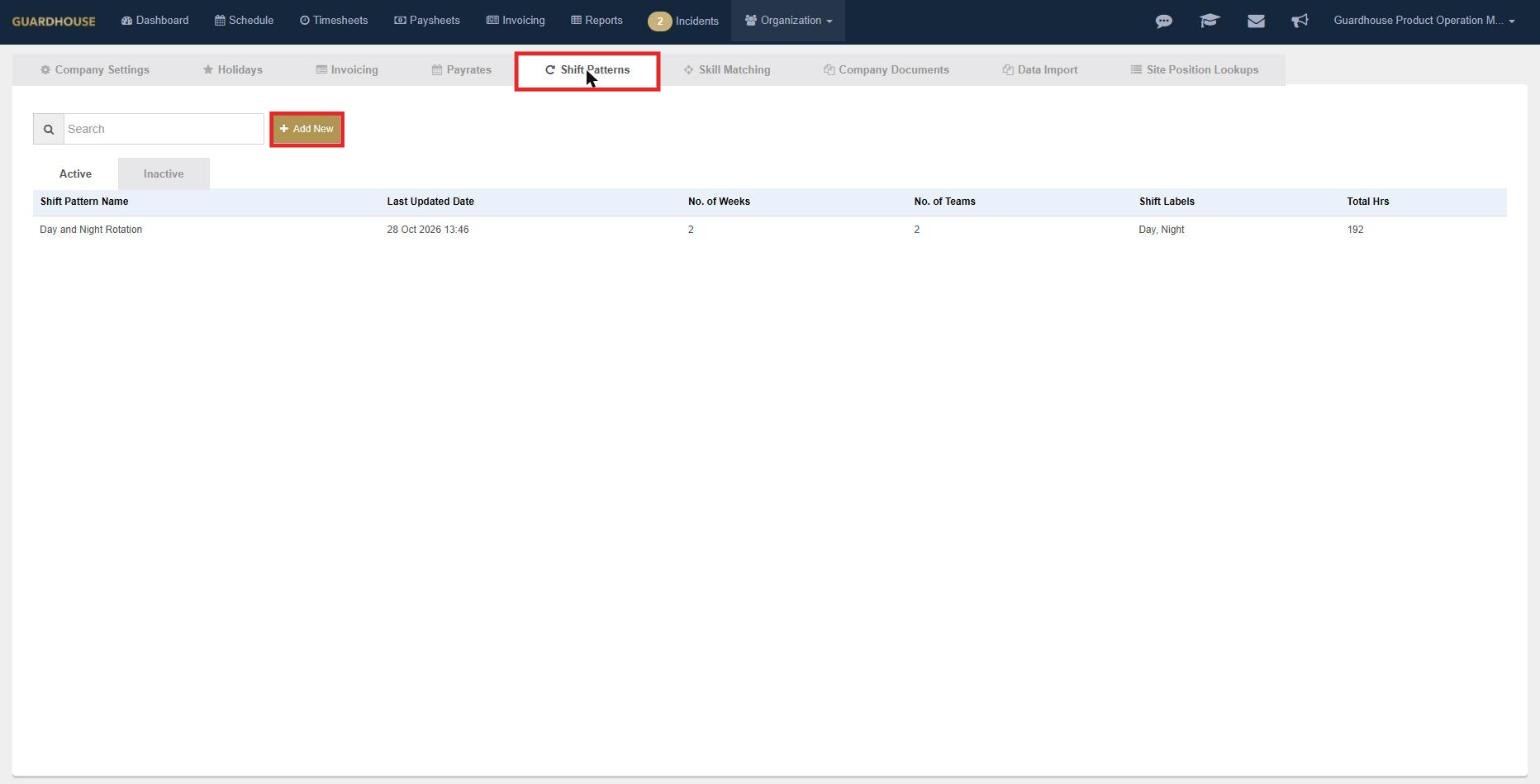
- Select Add New. The Shift Pattern Builder opens.
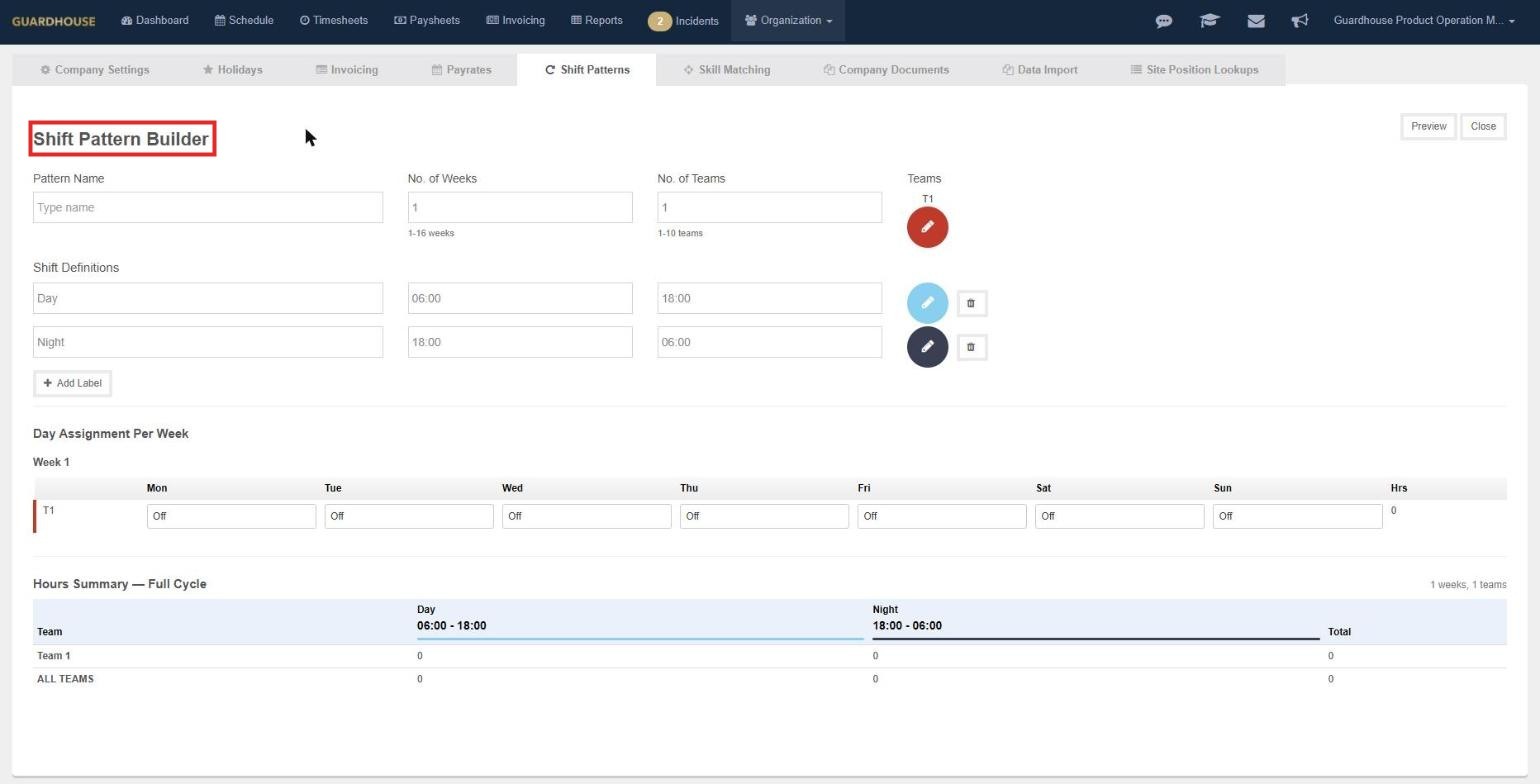
- Enter a Pattern Name.
- Enter the No. of Weeks before the pattern repeats (1 to 16).
- Enter the No. of Teams (1 to 10). Each team gets a colour (T1, T2 and so on). The team circles and the rows below update when you click out of the field.
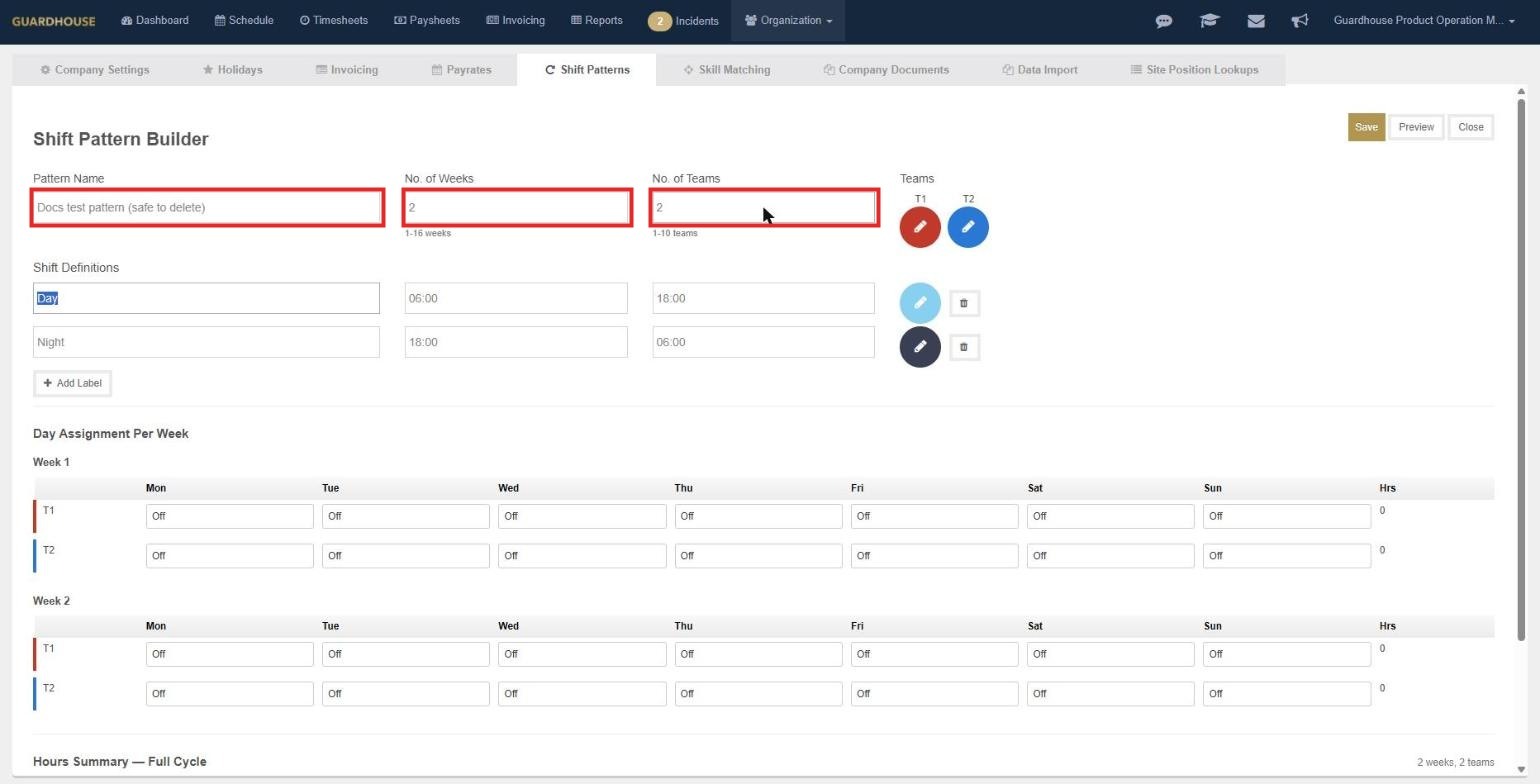
- Check the Shift Definitions. Day (06:00 to 18:00) and Night (18:00 to 06:00) are there by default. You can change the names and times, or select Add Label to add more. Shifts can overlap.
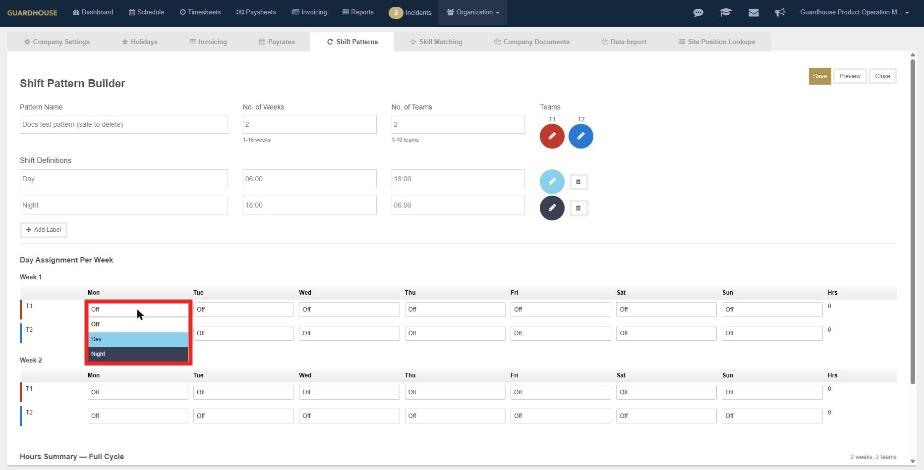
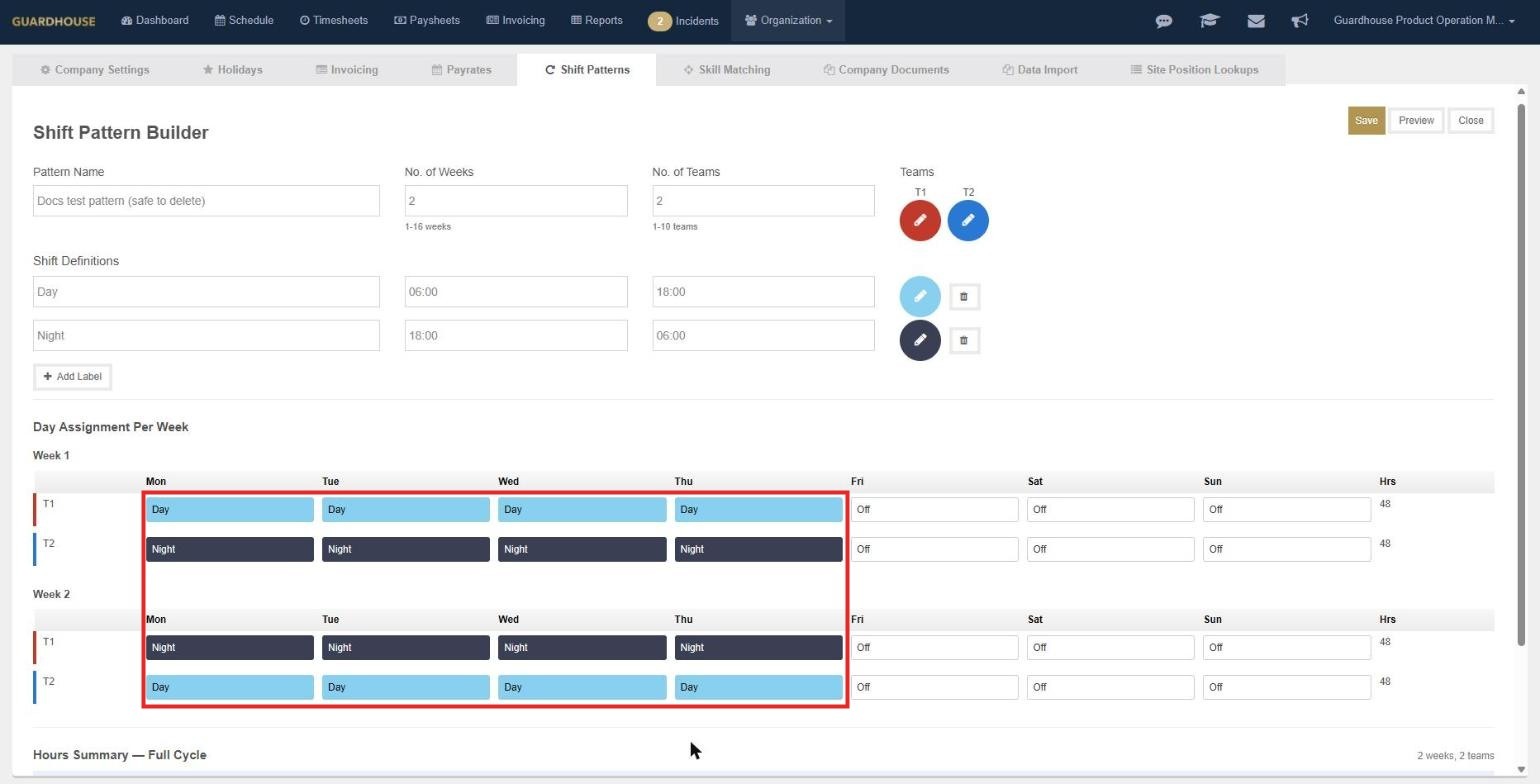
- Under Day Assignment Per Week, select a day's box for each team and choose Day, Night or Off. Do this for every week of the pattern. The Hrs column adds up each team's weekly hours.
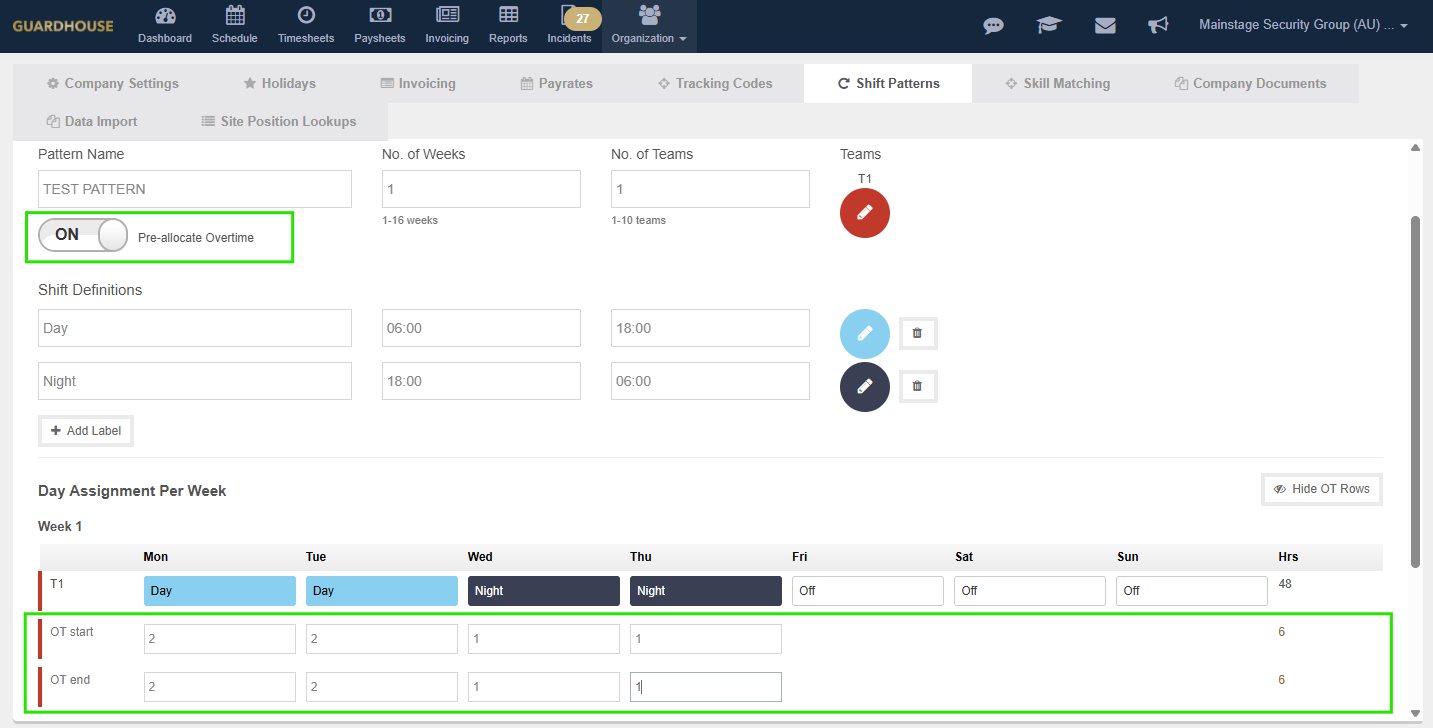
- Optional: if your company uses pre-allocated overtime, turn on the Pre-allocate Overtime toggle, then select Show OT Rows. An OT start and OT end row appears under each team. Enter the overtime hours at the start and/or end of each shift that needs it. See How to pre-allocate overtime.
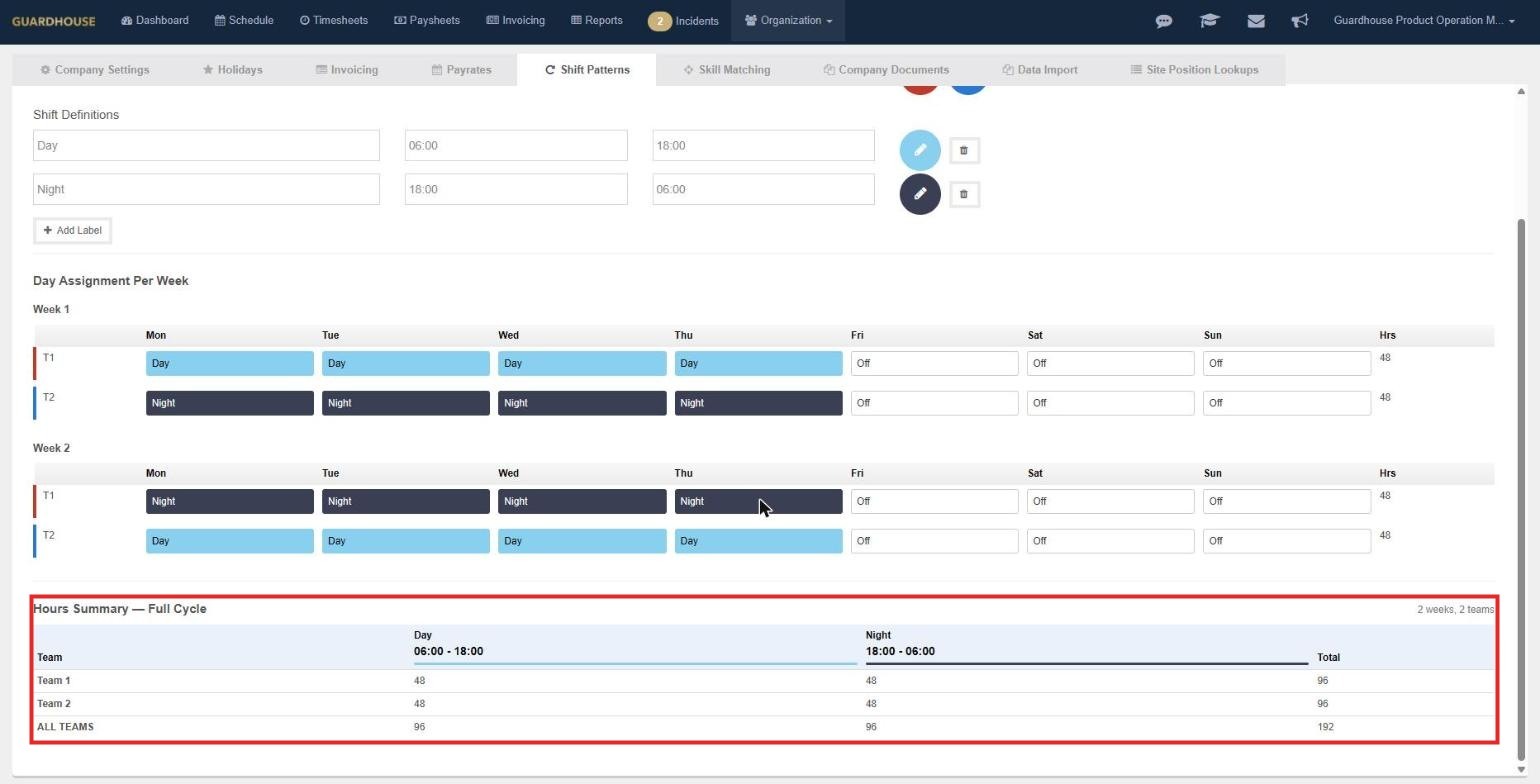
- Scroll down to the Hours Summary – Full Cycle to check each team's day, night and total hours. If Pre-allocate Overtime is on, the Hours Summary also shows the total pre-allocated overtime hours.
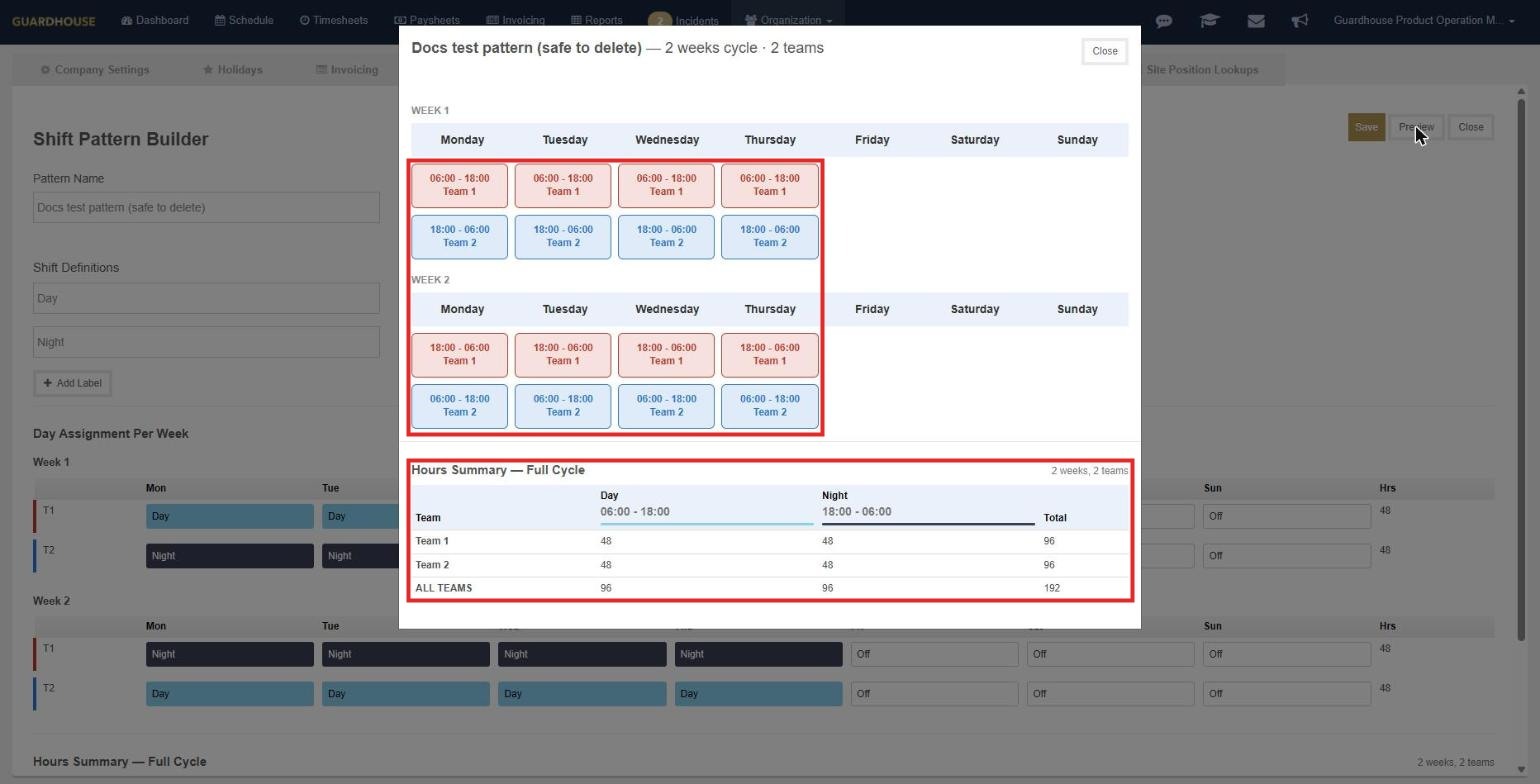
- Select Preview to see the pattern laid out by week and day in each team's colour, with the hours summary underneath. Select Close to go back to the builder.
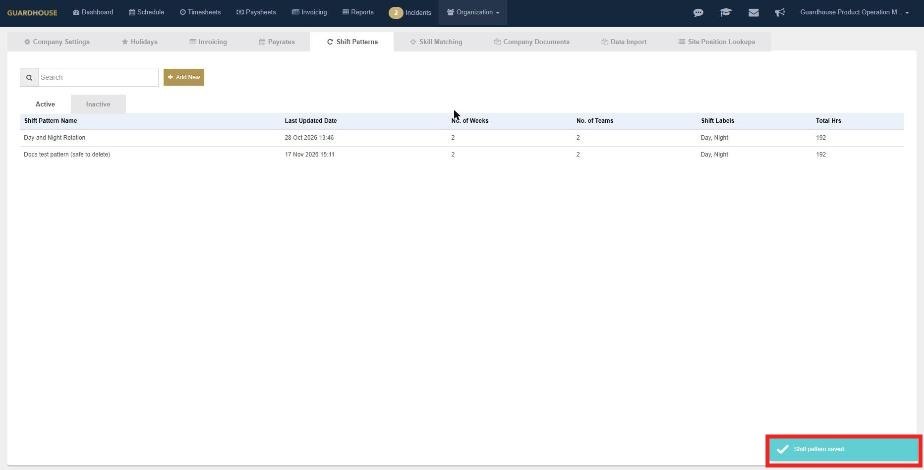
- Select Save. You'll see "Shift pattern saved." and your pattern appears in the list.
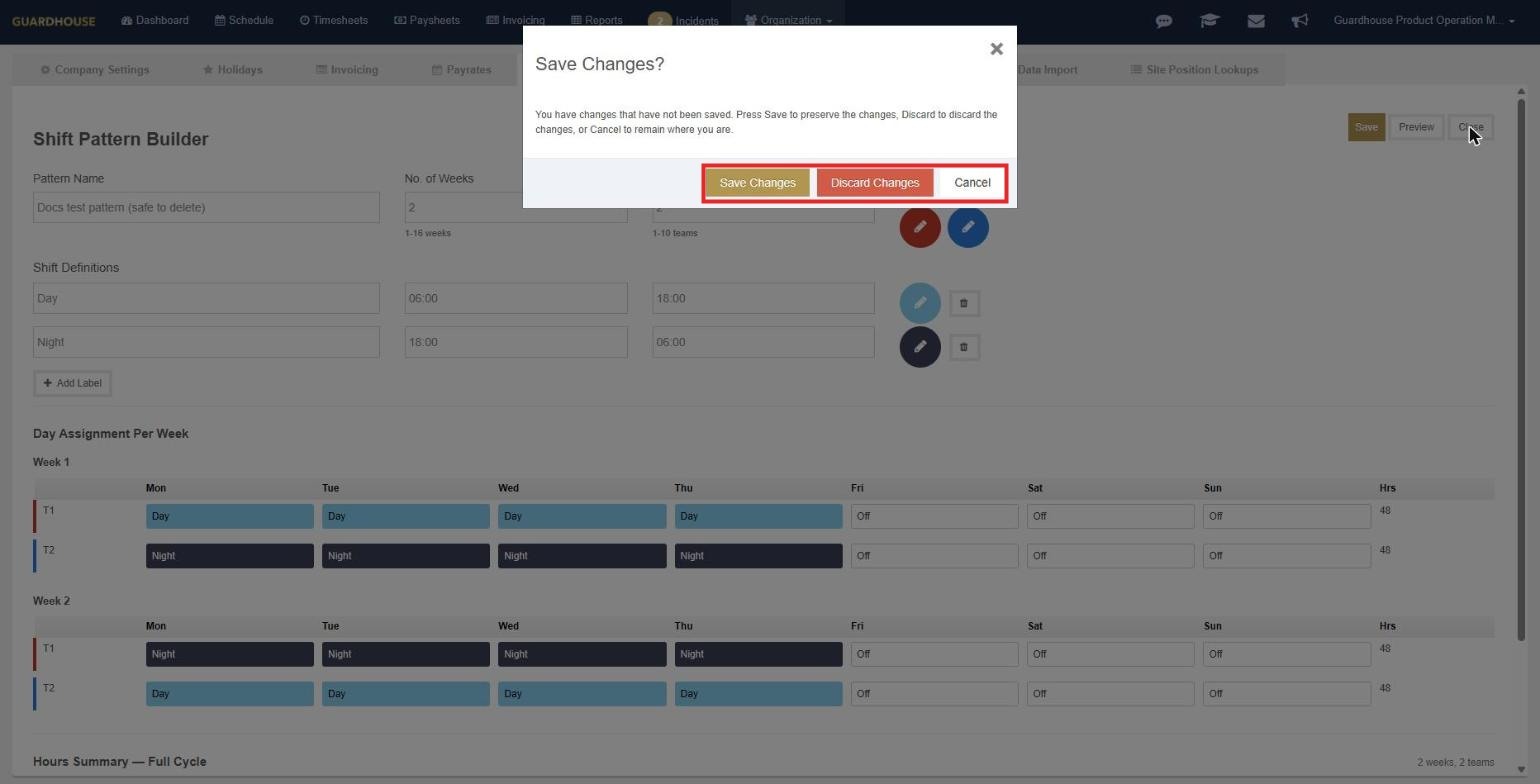
Note: If you select Close while you have unsaved changes, Guardhouse asks Save Changes? with the options Save Changes, Discard Changes and Cancel.
Edit, deactivate and reactivate
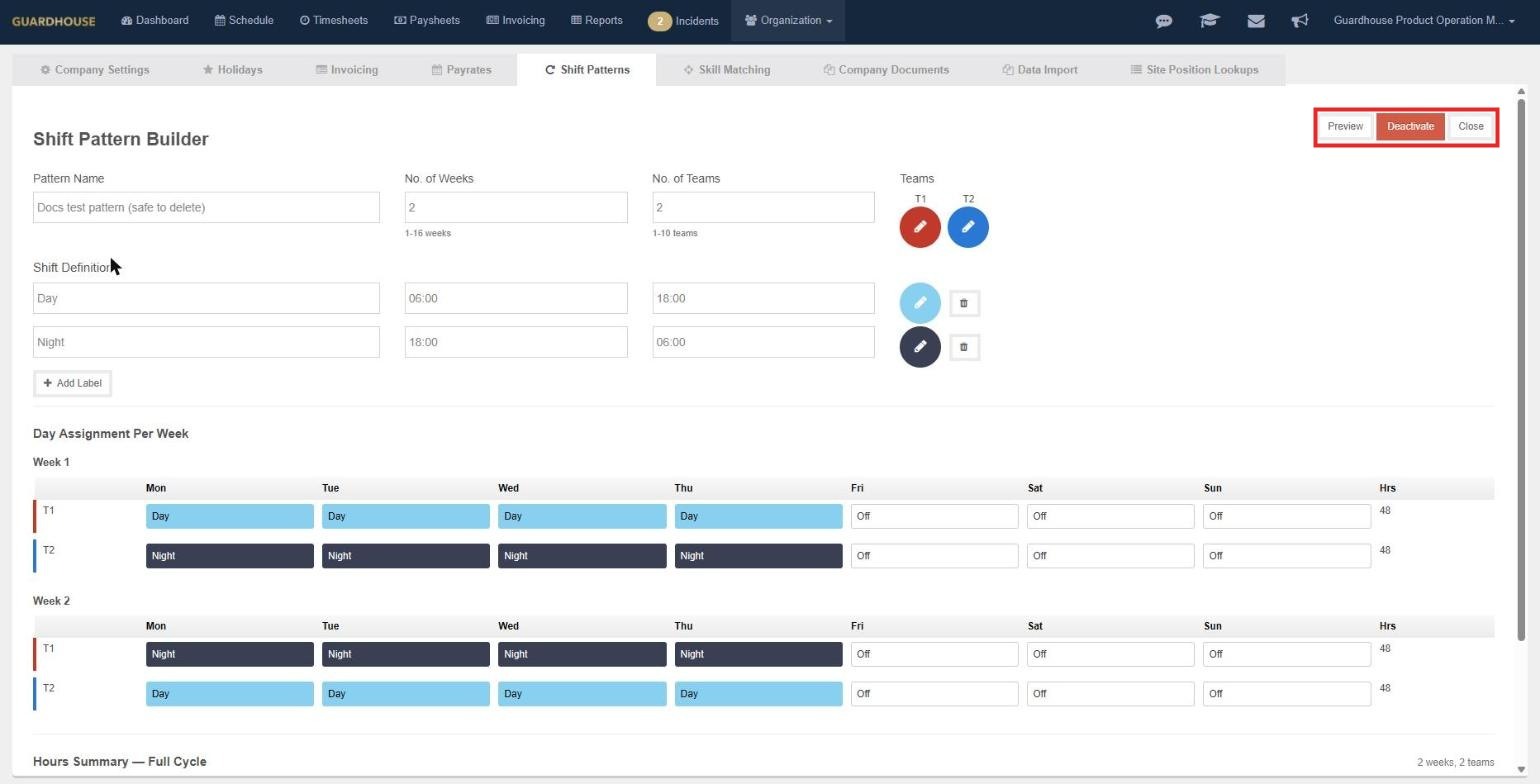
Select a pattern in the list to open it again. A saved pattern shows Preview, Deactivate and Close. A Save button appears once you change something. Deactivated patterns move to the Inactive tab, and you can reactivate them from there.
Next steps
Load your pattern into a cycle at a site. See How to create a cycle schedule.